
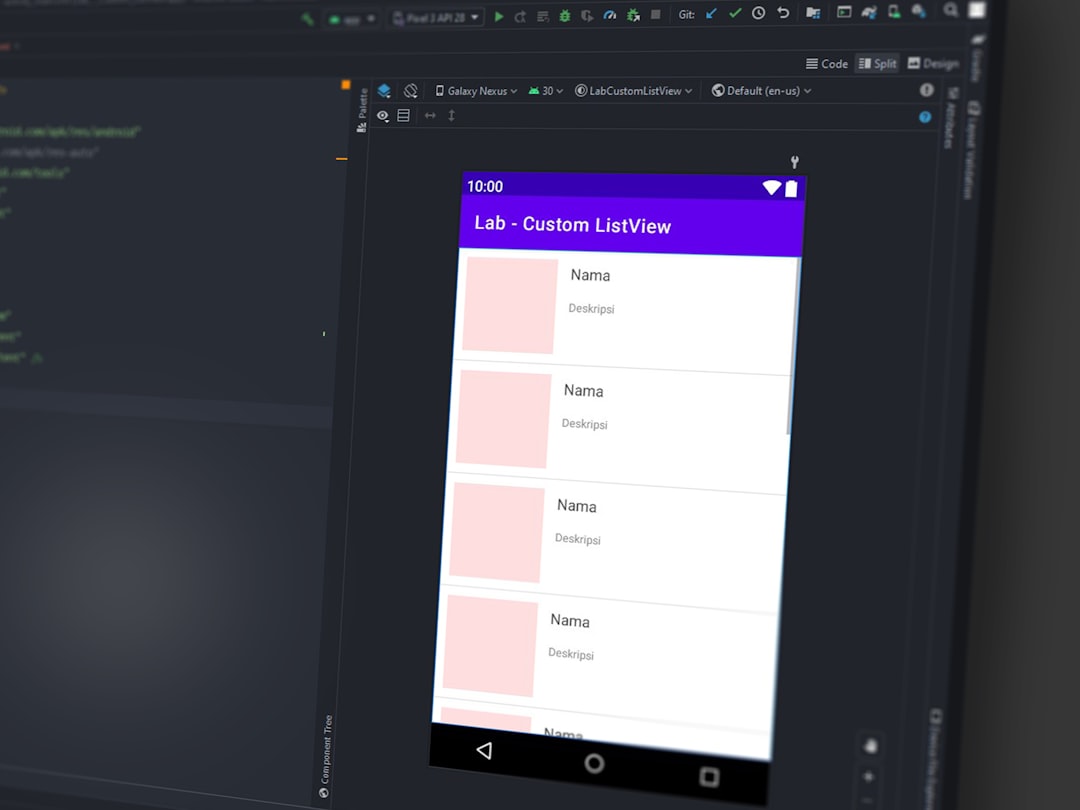
Developers working with Java in Android Studio or other IDEs occasionally encounter the frustrating Rendering Overlay Error java.lang.RuntimeException. This error typically appears during layout rendering in the design editor and can disrupt UI development. Although it may look intimidating at first glance, it usually stems from predictable configuration or resource issues. With the right troubleshooting steps, the error can be quickly identified and resolved.
TLDR: The Rendering Overlay Error java.lang.RuntimeException usually occurs due to misconfigured themes, incompatible dependencies, corrupted caches, or issues with custom views in Android projects. Fixing it often involves checking Gradle dependencies, validating XML layouts, updating SDK tools, and clearing IDE caches. Developers should systematically isolate the cause by reviewing logs and simplifying layouts. Keeping tools and libraries updated significantly reduces the risk of recurrence.
Understanding the Rendering Overlay Error
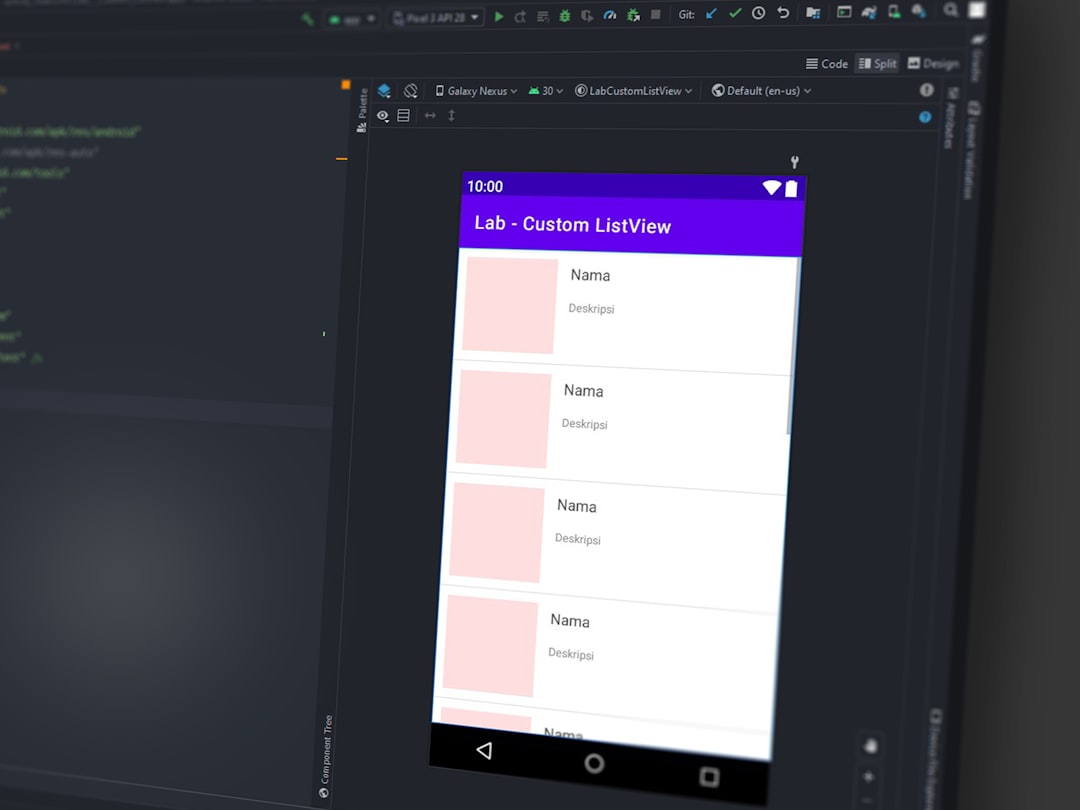
The Rendering Overlay Error appears when Android Studio cannot properly render a layout preview. The error is accompanied by a java.lang.RuntimeException, which indicates that something went wrong during runtime simulation of the layout.
Unlike compile-time errors, runtime exceptions during rendering may not always prevent the app from building or running on a device. However, they can block the visual design editor, making UI adjustments challenging.
Common signs include:
- Layout preview not loading
- Error message referencing InflateException or Resources$NotFoundException
- java.lang.RuntimeException stack traces in the rendering panel
- Blank or partially rendered layout
Common Causes of the Error
Several issues can trigger the rendering overlay error. Identifying the root cause is essential for a permanent fix.
1. Theme Misconfiguration
Incorrect or incompatible themes in styles.xml can cause runtime rendering issues. For example, using a Material Components theme without the required dependency will trigger a crash in the preview.
2. Dependency Conflicts
Outdated or conflicting Gradle dependencies are one of the most frequent causes. Mixing AndroidX libraries with older support libraries often results in runtime exceptions.
3. Custom View Initialization Errors
If a custom view contains logic that requires runtime resources (such as database calls or context-based services), the layout preview may fail because those services are unavailable in design mode.
4. SDK or Build Tool Mismatch
Using incompatible versions of:
- Android Gradle Plugin
- Compile SDK
- Target SDK
- Build tools
can easily lead to rendering failures.
5. Corrupted IDE Cache
Sometimes the issue is not in the code but in the IDE cache. Android Studio may store corrupted metadata that affects rendering only.
Step-by-Step Fix for Rendering Overlay Error java.lang.RuntimeException
Step 1: Review the Stack Trace
The first action should always be analyzing the stack trace. The message often contains valuable clues such as:
- Missing resource IDs
- Theme resolution failure
- Null pointer exceptions in custom views
Understanding the exact class mentioned in the exception helps narrow down the issue.
Step 2: Check Theme and Styles
Developers should verify that the correct parent theme is defined. For example:
- Use Theme.MaterialComponents if using Material widgets
- Ensure consistent theme inheritance
- Remove deprecated style references
If using Material Components, confirm that this dependency exists in build.gradle:
- com.google.android.material:material
Step 3: Update Dependencies
Outdated dependencies cause compatibility problems. It is recommended to:
- Run Gradle sync
- Update to the latest stable SDK
- Remove duplicate libraries
- Enable AndroidX if required
Step 4: Simplify the Layout
If the issue persists, developers should comment out sections of the layout XML to isolate the problematic view.
This process helps identify whether:
- A specific widget is misconfigured
- A custom view is causing the crash
- A layout attribute is invalid
Step 5: Guard Custom Views in Edit Mode
Custom views should check whether they are in preview mode before executing runtime logic. For example, they can use a conditional check for design mode.
This prevents database queries or background operations during rendering.
Step 6: Invalidate Cache and Restart
Sometimes the simplest fix works best. Developers can:
- Go to File → Invalidate Caches and Restart
- Clean project
- Rebuild project
This refreshes metadata and resolves many unexplained runtime rendering errors.
Comparison of Troubleshooting Approaches
| Method | Best For | Difficulty | Effectiveness |
|---|---|---|---|
| Check Stack Trace | Identifying root cause | Easy | High |
| Update Dependencies | Version conflicts | Medium | High |
| Simplify Layout | Custom view issues | Medium | High |
| Invalidate Cache | IDE glitches | Easy | Medium |
| Change SDK Version | Compatibility issues | Medium | High |
Preventing Future Rendering Errors
Preventive measures reduce development delays caused by recurring runtime exceptions.
- Keep Android Studio updated
- Maintain consistent dependency versions
- Avoid mixing legacy support libraries with AndroidX
- Write preview-safe custom views
- Regularly clean and rebuild the project
Advanced Debugging Techniques
For persistent cases, advanced methods may be required.
Enable Rendering Diagnostics
Android Studio includes layout inspection and diagnostic tools that provide additional details when rendering fails. Developers should enable verbose logging.
Test on a Physical Device
If the layout renders correctly on a physical device but not in preview, the issue likely relates to preview-only limitations.
Downgrade or Upgrade Gradle Plugin
Occasionally, specific Android Gradle Plugin versions introduce rendering bugs. Adjusting the plugin version may resolve compatibility problems.
Why This Error Should Not Be Ignored
Although the application might still run on a device, unresolved rendering errors can:
- Slow development workflow
- Mask deeper architectural issues
- Indicate dependency conflicts that could cause future crashes
Addressing the problem promptly ensures code stability and smoother collaboration among team members.
FAQ
1. What exactly causes java.lang.RuntimeException in layout preview?
It is usually caused by missing resources, incorrect themes, dependency conflicts, or custom views executing runtime code during preview rendering.
2. Does this error affect the actual app performance?
Not always. In many cases, it only affects the layout preview. However, it can signal deeper issues that might impact runtime behavior.
3. How can developers prevent this issue permanently?
Keeping dependencies updated, avoiding deprecated libraries, guarding custom views in edit mode, and maintaining consistent SDK versions greatly reduce the risk.
4. Is invalidating cache always effective?
No, but it frequently resolves IDE-related glitches. It should be attempted after verifying code and dependency configurations.
5. Can third-party libraries cause rendering overlay errors?
Yes. Incompatible or outdated third-party libraries often cause runtime rendering exceptions, especially if they depend on specific SDK versions.
6. Should developers downgrade SDK versions to fix the error?
Only if compatibility documentation suggests it. In most cases, updating dependencies to match the latest stable SDK is the better solution.
By methodically analyzing the stack trace and verifying configuration details, developers can resolve the Fix Rendering Overlay Error java.lang.RuntimeException efficiently. The key lies in systematic troubleshooting rather than guesswork.