
In today’s digital world, artificial intelligence has revolutionized how we produce content. One standout trend is the use of realistic AI avatars, which allows creators and brands to communicate more dynamically without stepping in front of the camera. If you want to bring your video content to life with virtual personas, CapCut for PC offers an intuitive and powerful solution.
TL;DR: CapCut PC provides a seamless way to create and animate realistic AI avatars by integrating face animation, lip-syncing, and video editing in a single platform. With a combination of easy-to-use tools and AI features, you can build lifelike avatars even without prior animation or design skills. In this guide, you’ll learn step-by-step how to create, customize, and bring these digital personas to life for your videos. The end result? Engaging content that looks professional and futuristic.
Why Use AI Avatars in Video Content?
AI avatars are becoming more than just novelty items — they’re powerful communication tools. Whether you’re a content creator, educator, marketer, or business owner, there are several good reasons to invest time in using AI avatars:
- Time-saving: No need for lengthy video shoots or setups.
- Scalability: Produce videos faster with consistent visual quality.
- Cost-effective: Avoid hiring actors, renting gear, or managing complex production logistics.
- Versatility: Use different characters for different types of content.
Now, let’s dive into how you can use CapCut PC to create realistic AI avatars for your videos, from scratch to final render.
Step 1: Install CapCut on Your PC
CapCut, best known for its mobile app, also has a powerful desktop version. You can download it for free from the official CapCut website.
Steps:
- Go to www.capcut.com
- Click on “Download for Windows” or “macOS” depending on your system.
- Install the application and launch it.
Once installed, you can open a new project and begin designing your AI-powered creations.
Step 2: Choose or Import Your AI Avatar
You have a few options when it comes to getting an avatar:
- Use premade avatars: Some AI tools integrate with CapCut to provide pre-designed talking characters.
- Create your own avatar: Use AI avatar generators like Synthesia, D-ID, or HeyGen to build a customized digital persona. Export your avatar video and import it into CapCut for editing.
- Use a still image: If you’re working on a budget, you can animate a static photo using lip-syncing technology in CapCut or external tools.
For best results, make sure the image or video you choose is high-resolution and front-facing with a neutral background.
Step 3: Add Voice and Sync Lip Movements
This step is what brings your avatar to life. You can do this using any of the following options:
- Text-to-speech (TTS): CapCut enables text-to-speech features in multiple languages and voices. Just type your script, choose a voice, and generate the audio.
- Record your own voice: Use a built-in mic or external recorder to narrate your script directly.
- Import a voiceover: Already have a voice recording? You can easily drag and drop it into your timeline.
After adding the voiceover, align it with the AI avatar using CapCut’s face animation and tracking features. This ensures that the lip movement corresponds accurately with the dialogue and gives an authentic feel to the video.
Step 4: Customize the Avatar Scene
To make your video visually compelling, it’s important to focus on the scene’s composition. CapCut gives you a variety of tools for this:
- Background Replacement: Use green screen features or stock visuals to place your avatar in any environment, from an office to a sci-fi world.
- Effects and Transitions: Add smooth transitions between sections, and highlight keywords using animated text.
- Emphasize with B-roll: Insert supplementary footage while the avatar is narrating to avoid visual fatigue and boost engagement.
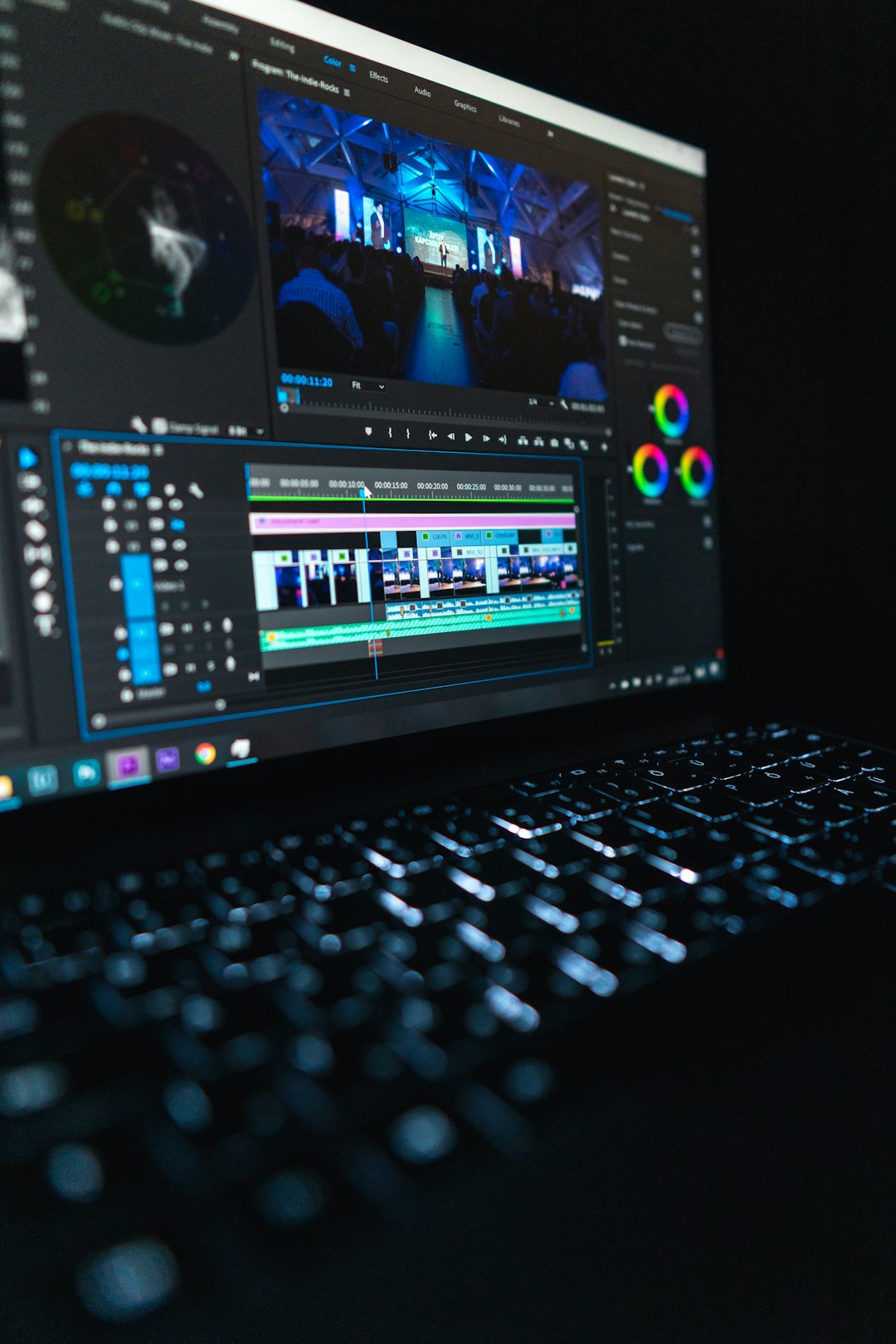
The beauty of CapCut lies in how easy it is to drag and drop assets, apply filters, and adjust elements with an intuitive timeline editor.
Step 5: Enhance with Filters, Subtitles, and Music
Even the most realistic avatar can benefit from finishing touches:
- Filters: Apply cinematic color grading or use portrait enhancements to refine skin tones and lighting.
- Subtitles: Add auto-generated or manually typed subtitles to improve accessibility and SEO.
- Music and Sound FX: Background music adds emotional context, while subtle sound effects can enhance realism and immersion.
Remember: The key is to support the avatar’s message without overwhelming the viewer with too many extras. Keep it balanced.
Step 6: Export and Share
Once happy with your video, it’s time to export.
Tips for exporting:
- Use 1080p minimum resolution to maintain clarity.
- Select MP4 format for universal compatibility.
- Choose a bitrate that balances quality and file size.
From here, you can upload your final video to YouTube, TikTok, Instagram, or use it for internal presentations and training materials. CapCut makes it easy to format the output for each platform with preset aspect ratios and export templates.
Pro Tips for More Realistic AI Avatars
If you’re aiming for more lifelike results, consider these expert tricks:
- Blend in micro-expressions: When using advanced avatars, select ones that simulate eye shifts, head tilts, and blinking.
- Match voice tone: Pick a voice that matches the avatar’s perceived personality and the video’s tone.
- Keep scripts conversational: AI speech can sound robotic with formal language; aim for casual, natural phrasing.
- Use lighting filters: Simulate how real lighting would interact with your avatar for a 3D feel.
Popular Use Cases for AI Avatars
There are many ways to implement AI avatars into your content strategy:
- Educational Tutorials: Break down complex topics using animated lecturers without filming real instructors.
- Marketing Videos: Humanize your brand using a recognizable digital ambassador.
- Product Demos: Let avatars walk viewer through features and drive conversions.
- Social Media Content: Create quick updates with minimal post-production time.
As you experiment more with CapCut and avatars, you’ll find the potential is limitless.
Final Thoughts
Using CapCut PC to create realistic AI avatars is not just a tech gimmick—it’s an efficient storytelling tool that can elevate your entire content strategy. Whether you’re just starting or looking to scale production, mastering these techniques can help you stand out in a competitive digital landscape. From lip-sync AI to polished visuals, CapCut provides everything in one hub for creators at all levels.
Ready to start creating? Dive into CapCut PC today and usher your content into the future.