
Online exams have transformed education, making it possible to test students anywhere in the world. But with that convenience comes a new layer of security, and one of the most widely used tools for protecting academic integrity is Respondus LockDown Browser. If you’ve ever launched it before a test, you may have wondered: Is it recording me right now? Understanding how Respondus works, what it monitors, and how you can tell whether recording is active can give you peace of mind—and help you avoid unintended violations.
TLDR: Respondus LockDown Browser itself does not always record you, but it can work with Respondus Monitor to record video, audio, and screen activity during exams. Whether it is recording depends on how your instructor has configured the test. You can usually tell by the presence of webcam checks, microphone prompts, or recording notifications at the start of the exam. When in doubt, review your exam instructions or assume monitoring is enabled.
Understanding Respondus LockDown Browser
Respondus LockDown Browser is a custom web browser designed to prevent cheating during online exams. When you take a test using it, the software restricts your ability to:
- Open other browser tabs
- Access other applications
- Take screenshots
- Copy and paste
- Print content
On its own, LockDown Browser focuses primarily on locking your computer environment. It does not automatically record you unless your instructor has also enabled an additional feature called Respondus Monitor.
This distinction is critical. Many students assume LockDown Browser always records video and audio—but that is not necessarily true.
What Is Respondus Monitor?
Respondus Monitor is an optional feature that works alongside LockDown Browser. When enabled, it uses your:
- Webcam
- Microphone
- Screen activity
It records you during the exam session and may use automated proctoring technology to flag suspicious behaviors.
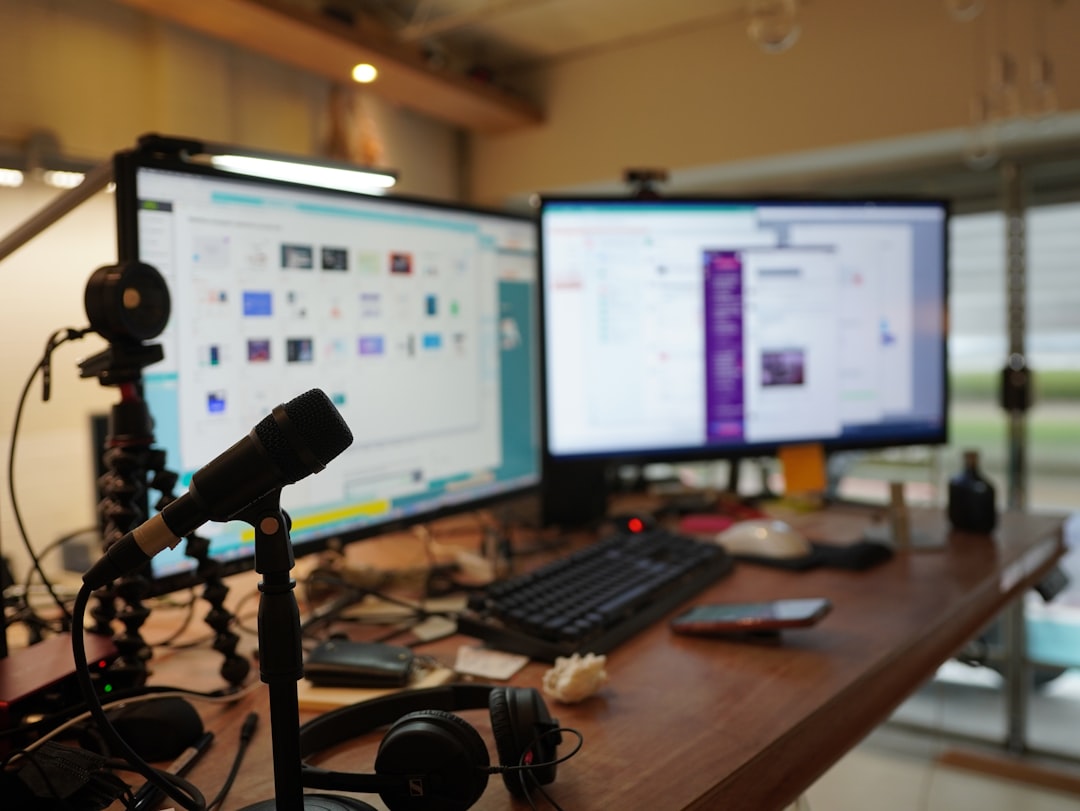
If Respondus Monitor is active, your session is likely being recorded and later reviewed—either by AI, your instructor, or both.
How to Tell If Respondus LockDown Browser Is Recording
Now to the main question: How can you tell? Here are the most reliable signs.
1. You Are Prompted to Complete a Webcam Check
One of the clearest indicators is a startup sequence requiring a webcam check. Before the exam begins, you may be asked to:
- Enable your camera
- Adjust your webcam positioning
- Show your photo ID
- Record a short environment scan of your room
If you must perform these steps, recording is almost certainly enabled.
2. You See a Recording Indicator
During exams with Respondus Monitor, there is often a small video panel showing your webcam feed. This acts as confirmation that video capture is active.
Some setups also include:
- A recording notification message
- A visible timer alongside your video feed
- Status messages about microphone detection
If you can see yourself on screen, you should assume recording is in progress.
3. You Are Required to Use a Microphone
If the system prompts you to test your microphone before the exam begins, audio recording is likely enabled.
You may see a sound level bar moving as you speak during setup. This confirms your microphone input is being captured.
4. The Exam Instructions Mention Monitoring
Always read the exam guidelines carefully. Instructors typically disclose monitoring requirements in advance. Look for language such as:
- “This exam requires Respondus Monitor.”
- “Webcam and audio recording are required.”
- “Your session will be recorded and reviewed.”
If these statements appear anywhere in your course materials, you can expect to be recorded.
5. You Performed an Environment Scan
Respondus Monitor often requires you to use your webcam to scan your surroundings before the test begins. This means slowly turning your camera to show:
- Your desk surface
- The walls around you
- Your workspace area
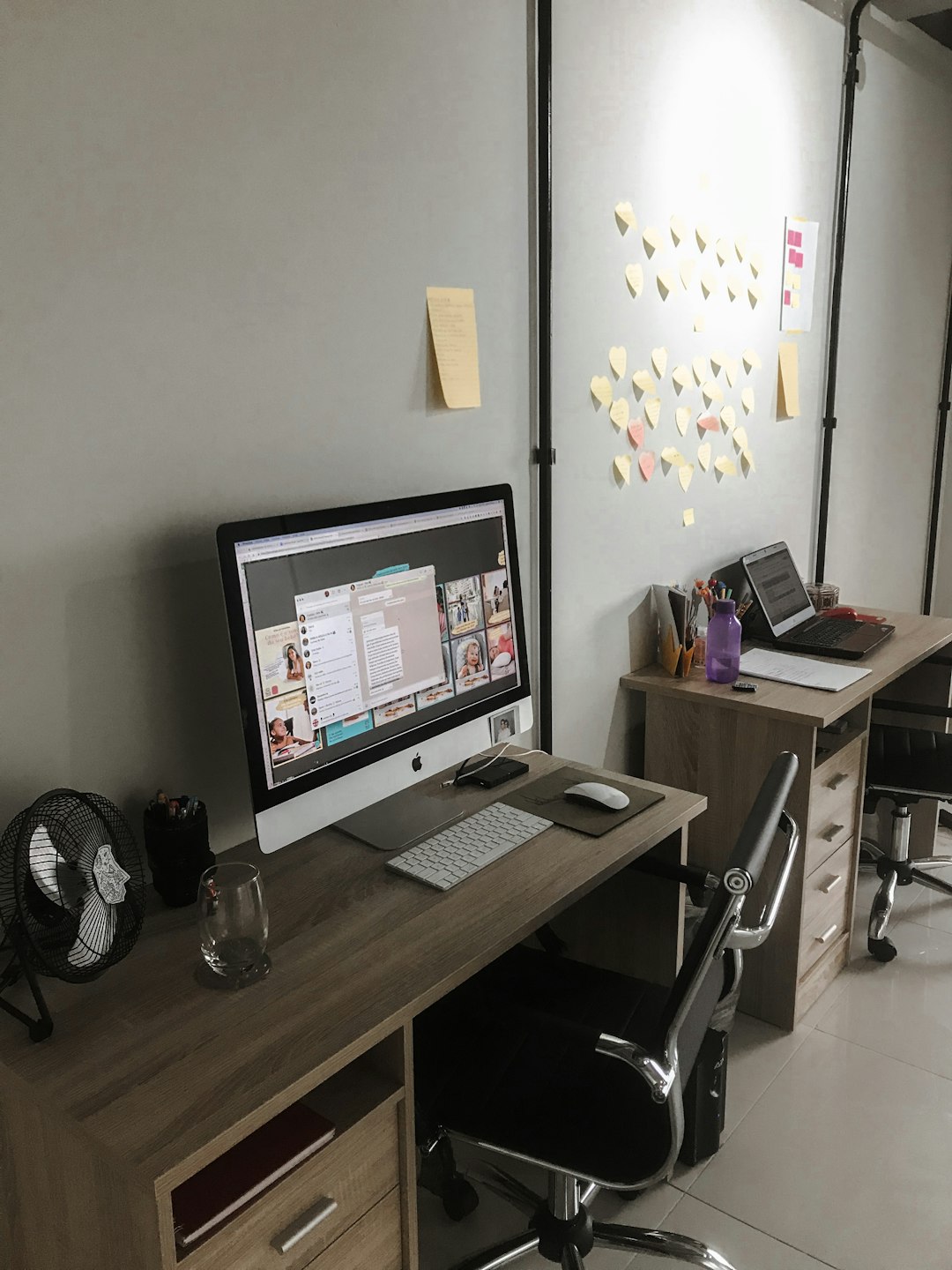
If you completed this step, your session is being video recorded.
What If There Are No Webcam Prompts?
If you launch LockDown Browser and:
- You are not prompted to enable your webcam
- You see no video panel
- You are not asked for microphone access
- No monitoring instructions appear
Then Respondus Monitor is likely not enabled, and the browser is only restricting your device—not recording video or audio.
However, it is still tracking your exam activity within the testing platform (such as time spent on questions or navigation patterns).
Comparison: LockDown Browser vs. Respondus Monitor
| Feature | LockDown Browser Only | With Respondus Monitor |
|---|---|---|
| Locks other applications | Yes | Yes |
| Prevents copy and paste | Yes | Yes |
| Records webcam video | No | Yes |
| Records audio | No | Yes |
| Performs environment scan | No | Yes |
| Artificial intelligence flagging | No | Yes |
This comparison makes it clear: recording only happens if Respondus Monitor is enabled.
Does Respondus Record Your Screen?
LockDown Browser does not typically create a traditional screen recording file like screen capture software would. However, it does:
- Restrict screen access
- Prevent switching applications
- Block keyboard shortcuts
- Monitor certain activity patterns
With Respondus Monitor enabled, suspicious behaviors (like leaving the screen frame) may be flagged. But it is not the same as a continuous screen video recording in most configurations.
Can You Tell After the Exam?
Once the exam ends, most students cannot directly access recordings. However, signs that recording occurred include:
- A message confirming your session was uploaded
- A notification about video processing
- Instructions saying recordings will be reviewed
If you receive no such message, recording may not have been enabled.
Privacy Considerations
It is natural to feel concerned about privacy when using proctoring software. If recording is enabled:
- Videos are typically stored on Respondus servers
- Access is limited to authorized instructors or administrators
- Institutions often have retention policies for deletion
If you have concerns, you can:
- Review your institution’s privacy policy
- Ask your instructor how recordings are stored
- Contact IT support for clarification
Common Misconceptions
“LockDown Browser is always watching me.”
Not true. It only records video if Respondus Monitor is enabled for that specific exam.
“It records me even when I’m not in an exam.”
Respondus does not continuously record outside of an active exam session.
“It can see my entire computer history.”
LockDown Browser restricts activity during exams but does not normally scan personal files or browsing history.
When in Doubt, Assume Recording
If you are ever unsure whether your session is being recorded, the safest approach is to assume that it is. This mindset helps you:
- Maintain proper testing behavior
- Avoid accidental violations
- Stay within academic integrity guidelines
Good habits include:
- Staying centered in camera view
- Avoiding looking off-screen repeatedly
- Keeping your workspace clear
- Remaining quiet unless speaking is required
Final Thoughts
Knowing whether Respondus LockDown Browser is recording comes down to one key factor: Is Respondus Monitor enabled? If you see webcam prompts, complete environment checks, or notice your video feed on screen, recording is active. If you only experience browser restrictions without camera or microphone setup, then it is likely not recording you.
Understanding how the system works removes uncertainty and lets you focus on what really matters—performing your best on the exam. Instead of worrying about whether you’re being recorded, you can walk into your next online test informed, prepared, and confident.