
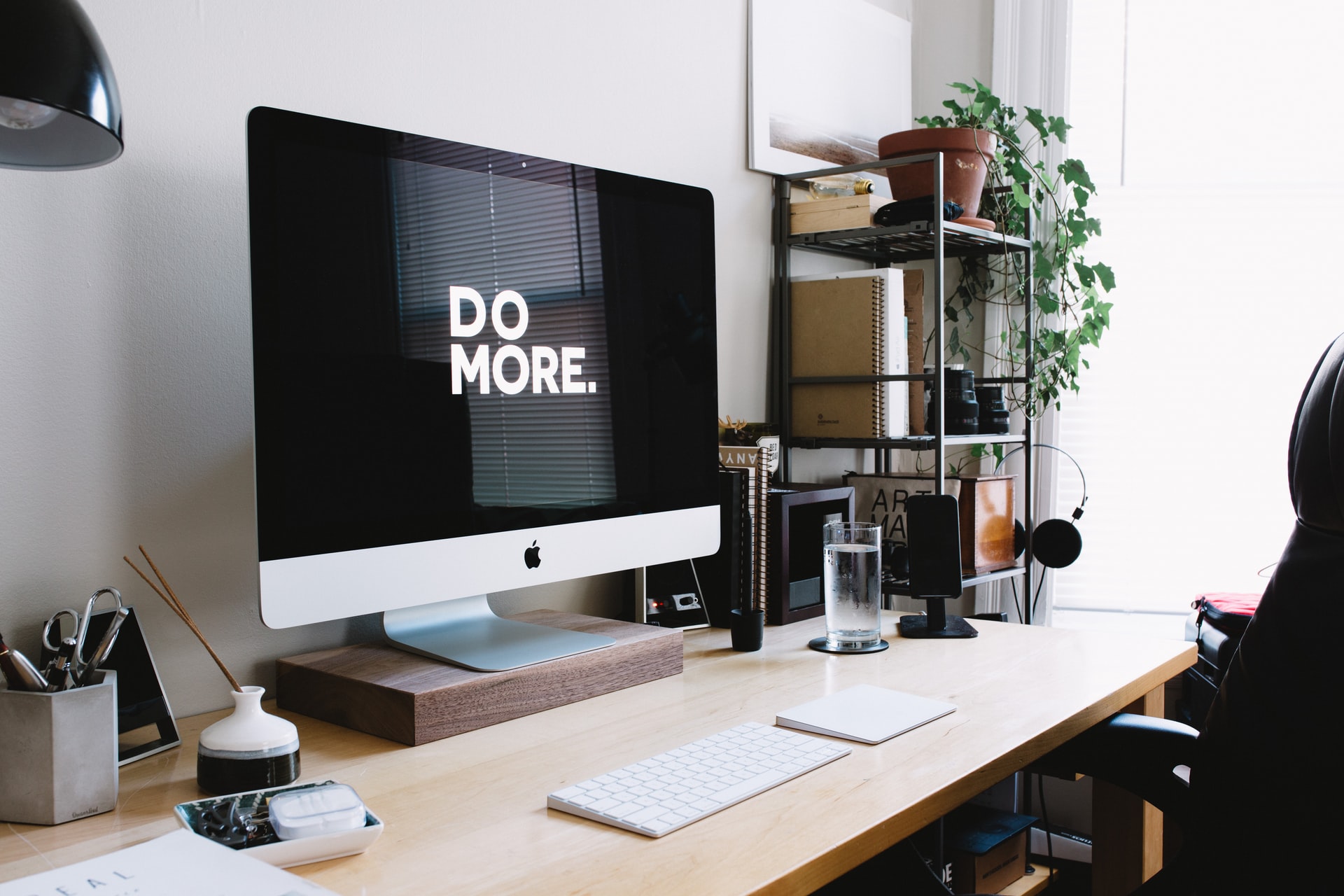
If you’ve ever worked with multiple monitors or run several apps at once on a Mac, you probably know the frustration of constantly repositioning windows every time you restart or disconnect a display. This seemingly small issue can become a serious productivity killer—especially for multitaskers, programmers, designers, and remote workers. Enter the Stay app: a macOS utility designed to give you ultimate control over your window arrangement, saving time and maintaining sanity.
TL;DR: Stay is a macOS window management tool that remembers the position of your app windows so that they can be restored anytime—perfect for users who work with multiple displays or app-heavy workflows. Whether you’re a developer, creative professional, or remote worker, Stay can make a significant difference in your daily tasks. Its ability to automate window layouts saves time and reduces stress. This article explores the top use cases that make Stay a must-have Mac utility.
1. Managing Complex Multi-Monitor Workspaces
If you’re the type of user who operates with more than one monitor, you already know how chaotic window management can be. macOS tries to “help” by rearranging apps automatically, but it often results in misplaced or resized windows after you unplug and reconnect monitors. Stay solves this by allowing you to save and restore window arrangements with precision.
- Save specific layouts for dual, triple, or even larger monitor configurations.
- Automatically reposition windows after display settings change.
- Minimize setup time every time you dock or attach external displays.
Graphic designers, video editors, and day traders rely on multiple monitors to keep tools, references, and communication windows open simultaneously. Stay ensures that none of these get lost between transitions.

2. Improving Productivity for Developers
Software developers regularly use numerous tools and terminals—an IDE, browser, debugger, preview window, terminal stack, and maybe a documentation sidebar. Reorganizing these every morning is a waste of time. Stay allows developers to:
- Assign predefined window positions for each app they use during coding sessions.
- Create profiles for different projects with varied tool requirements.
- Focus faster by jumping straight into the work with an optimized layout.
The result? You can turn on your Mac, open your apps, and let Stay put everything exactly where you want—code window on the left, simulator on the right, logs below, and Slack in the corner.
3. Facilitating Task-Specific Workflows
People often handle multiple job functions or shift between types of tasks. For example, a marketing professional might spend their morning writing content and their afternoon in meetings and analytics dashboards. Stay helps to switch between these task modes seamlessly.
Use Stay to:
- Create different layouts for specific work modes—e.g., “Writing Mode,” “Meeting Mode,” and “Analytics Mode.”
- Assign keyboard shortcuts to each saved layout for quick transitions.
- Reduce context-switching friction by having all needed tools in place instantly.
With a single click or keystroke, you can jump from Google Docs and Notion to Zoom and Calendar, then to Google Analytics and spreadsheets—without moving a single window manually.
4. Stabilizing Window Arrangements During Remote Work
Remote work often requires flexibility in workspace setup. One day you’re connected to a docking station with two large monitors; the next you’re on the couch with just your MacBook screen. Stay makes laptop life easier by auto-adjusting and restoring your preferred positions based on what screen setup is available.
Stay detects display configuration changes and automatically repositions your windows depending on whether you’re in “home office” mode or “travel” mode. This means you never lose your window layout or waste time resizing windows while working remotely.

5. Enhancing Presentation Setups for Educators and Trainers
If you give frequent presentations or run classes, you probably use specific apps in specific spots: Keynote or PowerPoint on one screen, notes on another, and a browser or Zoom window accessible but hidden. It’s easy for this organized setup to unravel as you plug into different projectors or displays.
Stay gives educators and corporate trainers the power to:
- Save “presentation-ready” layouts with just the right window sizing and placement.
- Quickly restore teaching profiles for different classroom or remote settings.
- Prevent technical hiccups by knowing windows will land properly when displays connect.
This means you can spend less time fiddling with your screen and more time engaging your audience.
6. Automating Layouts for Frequent App Users
Do you always open the same apps—Mail, Safari, Finder, Evernote, and Messages—in the same spots every day? Stay can automate this routine so you don’t have to place things manually.
Features that help include:
- Auto-restore on launch: Configure Stay to reposition windows when apps open.
- Set behavior for specific apps: Choose to exclude or include certain programs.
- Global or per-layout settings: Keep work layouts separate from personal ones.
It’s a small tweak that adds up to big peace of mind—especially if you run 10 or more apps every day as part of your typical routine.
7. Streamlining Workflow for Audio and Video Production
Editing audio or video projects often involves multiple apps and plugins: Final Cut Pro, Logic Pro X, plugin tools, file libraries, reference folders, and maybe YouTube for tutorial checks. Creators can use Stay to save all that visual setup and get instant access to their creative sandbox every time they “enter the studio.”
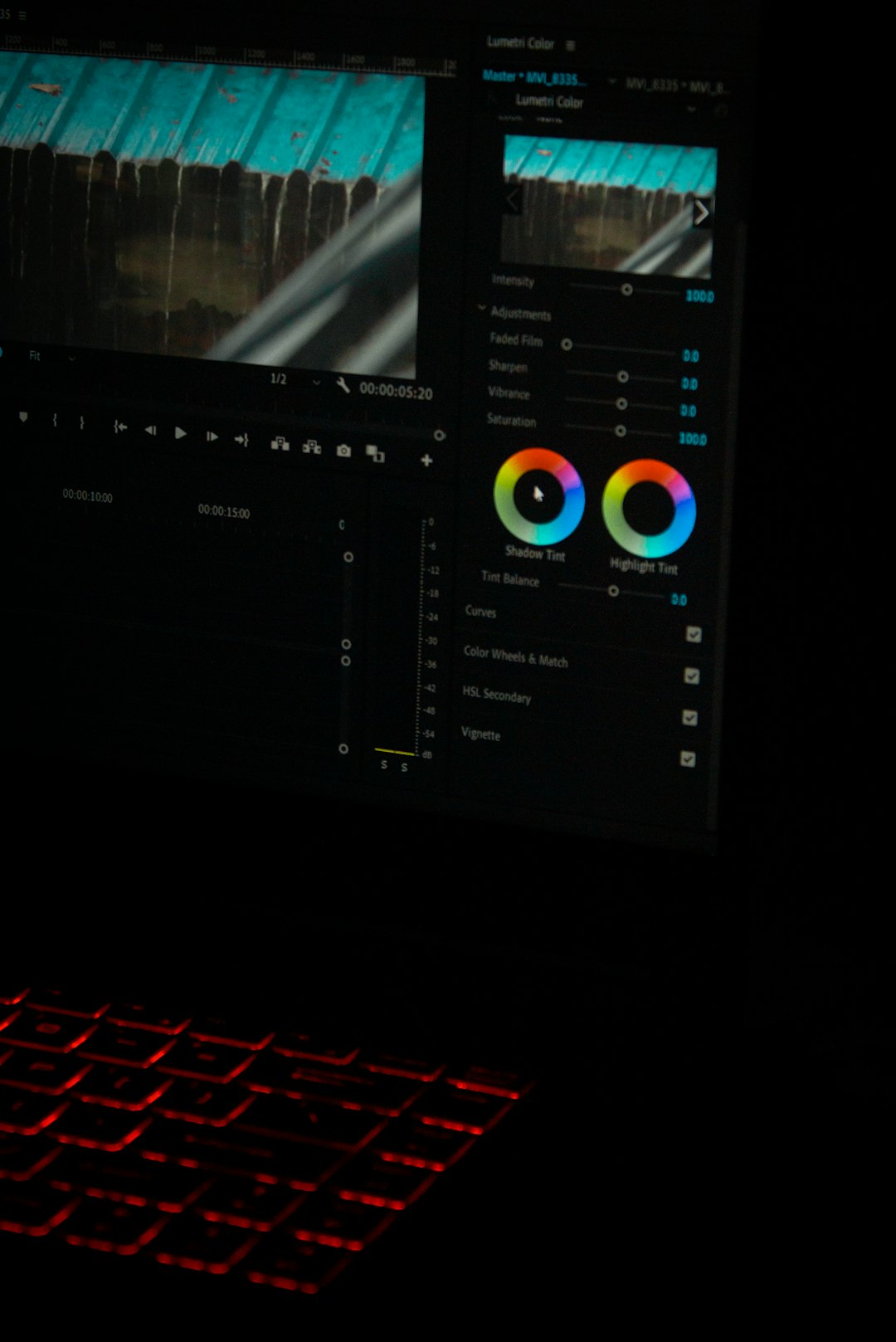
Benefits include:
- Restoring clip libraries, mixer panels, and preview windows automatically.
- Reducing prep time before sessions or scheduled livestreams.
- Creating different setups for editing, recording, and publishing workflows.
For artists juggling projects across different platforms and media, this added consistency is a powerful productivity booster.
8. Managing Client Demos and Consulting Sessions
Consultants and agency professionals often conduct demos for different clients, each requiring a unique app environment. Instead of manually opening and arranging tools, Stay lets you configure client-specific layouts and switch on demand.
This is especially helpful when:
- Showing web apps, dashboards, or prototypes that need exact window sizes.
- Running a live interaction demo and juggling internal notes behind the scenes.
- Switching quickly between clients without disrupting your focus or desktop.
With Stay, each client’s layout is just a click away, giving you a more polished and professional workflow.
Final Thoughts
Window management isn’t glamorous, but it’s fundamental to a smooth computing experience. Stay is the kind of app that you install once and quickly realize you can’t live without. From developers and designers to teachers and consultants, it simplifies a hidden complexity that we all deal with daily.
By automating window layouts, accommodating multiple display setups, and providing tailored workflows for every user type, Stay gives users more than just screen real estate—it gives them organization, time, and peace of mind.
So whether you’re working on your next big project, conducting a client demo, or just trying to stay organized, Stay has your windows covered.