
The Toyota app is designed to bring convenience to your fingertips—remote start, vehicle health updates, lock and unlock features, navigation support, and more. But when the app suddenly stops working, fails to connect, or refuses to log you in, that convenience quickly turns into frustration. Whether you’re dealing with loading errors, connection timeouts, or missing vehicle data, you’re not alone.
TLDR: If your Toyota app is not working, most issues are caused by connectivity problems, outdated software, incorrect login credentials, or app cache errors. Quick fixes like restarting your phone, updating the app, clearing cache, re-pairing your vehicle, or checking Toyota servers often restore functionality in minutes. In more persistent cases, reinstalling the app or contacting Toyota support may be necessary. Follow the seven fixes below to quickly regain access and connectivity.
Why the Toyota App Stops Working
Before diving into solutions, it helps to understand why the app may fail. Common causes include:
- Outdated app version
- Poor internet connection
- Server outages on Toyota’s end
- Expired subscription services
- App cache corruption
- Bluetooth or vehicle pairing issues
- Operating system incompatibility
Now let’s explore the seven quick fixes that can restore access and connectivity.
1. Check Your Internet Connection
This may sound basic, but a weak or unstable internet connection is the most common cause of Toyota app issues.
What to do:
- Switch between Wi-Fi and mobile data.
- Move to an area with stronger signal strength.
- Restart your router if you’re on Wi-Fi.
- Turn Airplane Mode on and off.
If the app loads slowly or displays connection errors, this quick step often resolves the problem instantly.
Pro tip: Remote features require both your phone and your vehicle to have strong network connectivity.
2. Restart Your Phone
A simple restart can fix minor system glitches interfering with app performance. Smartphones run multiple background processes, and sometimes the Toyota app conflict is temporary.
How to restart effectively:
- Power down the device completely (don’t just lock it).
- Wait 30 seconds.
- Turn it back on and reopen the app.
This refreshes system resources and often fixes unexpected crashes or freezing issues.
3. Update the Toyota App
If your Toyota app hasn’t been updated recently, you may be using a version incompatible with your phone’s operating system.

To check for updates:
- Open the App Store (iPhone) or Google Play Store (Android).
- Search for “Toyota App.”
- Tap Update if available.
Developers regularly release updates that fix bugs, improve connectivity, and enhance performance. Running the latest version ensures compatibility with Toyota’s backend systems.
Important: Also make sure your phone’s operating system is up to date.
4. Clear App Cache and Data
Over time, app cache files can become corrupted and cause login failures or loading problems.
For Android Users:
- Go to Settings.
- Select Apps → Toyota App.
- Tap Storage.
- Choose Clear Cache.
For iPhone Users:
Apple doesn’t allow direct cache clearing. Instead:
- Delete the app.
- Reinstall it from the App Store.
This removes corrupted temporary files and gives the app a fresh start without affecting your Toyota account.
5. Log Out and Log Back In
Sometimes authentication tokens expire, especially after password changes or extended inactivity.
Steps:
- Open the Toyota app.
- Go to Account Settings.
- Select Log Out.
- Close the app completely.
- Reopen and log back in.
If login fails, verify that:
- Your email and password are correct.
- You are using the same account originally linked to the vehicle.
- Your subscription services (such as Remote Connect) are still active.
Forgot your password? Use the reset option and create a new secure password.
6. Re-Pair Your Vehicle with the App
If the app opens but shows “Vehicle Not Connected” or doesn’t display updated information, the issue may be pairing-related.
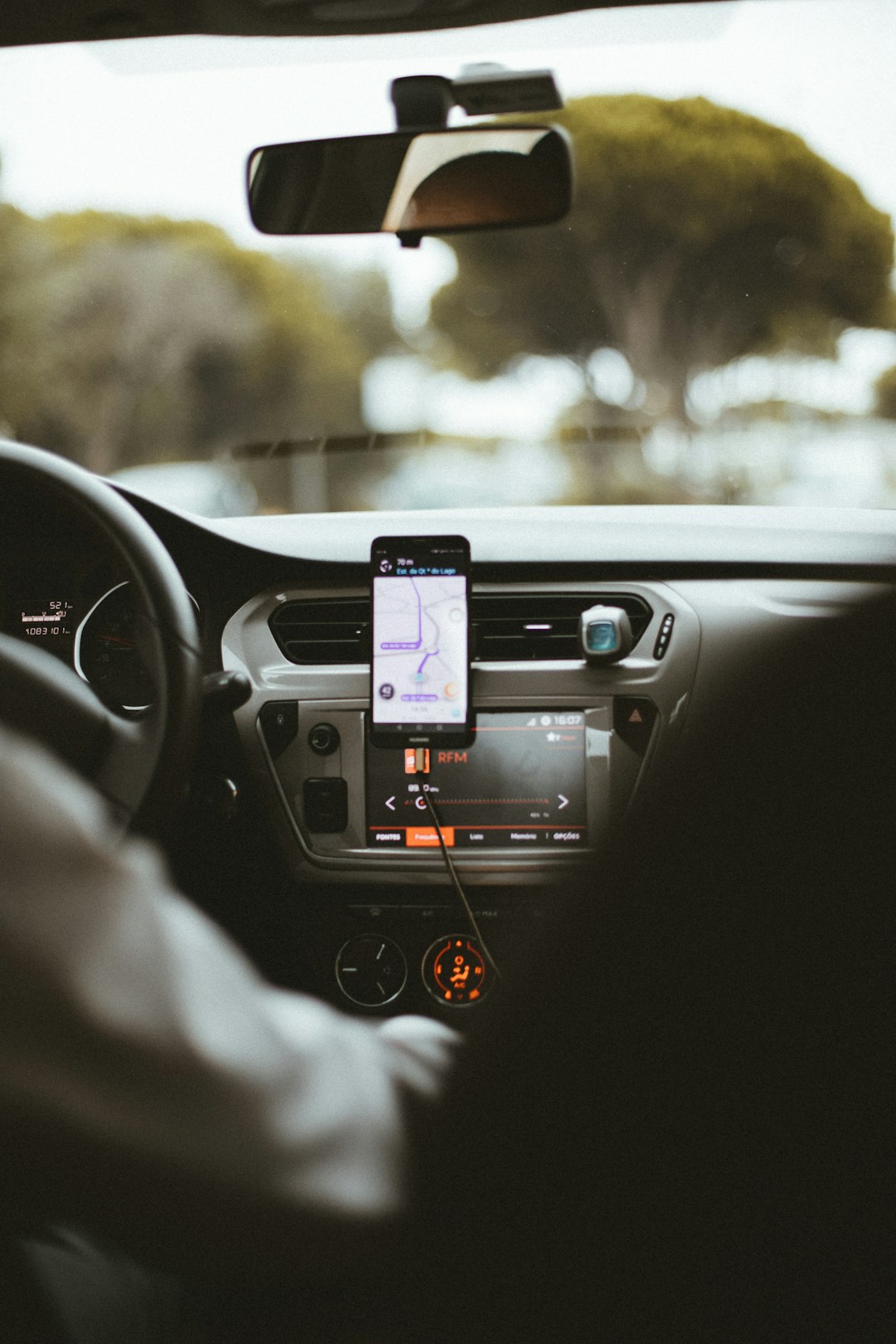
To re-pair your vehicle:
- Delete your vehicle from the app.
- Go into your car’s infotainment system settings.
- Remove paired smartphones.
- Restart the vehicle system.
- Pair your phone again using Bluetooth and app instructions.
Make sure:
- Your vehicle is parked in an area with cellular signal.
- Bluetooth is enabled on your phone.
- You complete verification steps sent via email or in-app notifications.
This step is especially useful after purchasing a used Toyota or switching smartphones.
7. Check Toyota Server Status
Sometimes the problem isn’t on your end at all. Toyota’s servers occasionally undergo maintenance or experience outages.
Signs of a server issue:
- The app opens but no vehicles load.
- Multiple users report problems online.
- Features like remote start are unavailable.
What you can do:
- Visit Toyota’s official website for service announcements.
- Check social media platforms for outage updates.
- Wait 30–60 minutes and try again.
Server-related issues usually resolve on their own without requiring action from you.
Bonus Fix: Reinstall the App Completely
If none of the above solutions work, try a full reinstall:
- Delete the Toyota app.
- Restart your phone.
- Download the app again.
- Log in and reconnect your vehicle.
This eliminates deeply embedded configuration errors and restores default app settings.
When to Contact Toyota Support
If you continue to experience problems, professional assistance may be necessary.
Contact Toyota Support if:
- Your vehicle won’t authenticate in the app.
- Subscription services appear active but don’t function.
- You receive error messages repeatedly.
- Your vehicle was recently transferred ownership.
Having your VIN (Vehicle Identification Number) ready will help speed up assistance.
Common Issues and Their Quick Answers
Why is remote start not working?
It may require an active Remote Connect subscription and proper network signal.
Why won’t my Toyota app show updated vehicle status?
The vehicle may not have connected to the network recently. Drive it briefly or park in a stronger signal area.
Does the app work without Bluetooth?
Most remote features rely on cloud connectivity, but Bluetooth pairing improves vehicle-to-phone communication.
Preventing Future Toyota App Problems
To reduce the chance of future disruptions:
- Enable automatic app updates.
- Keep your phone’s OS updated.
- Maintain active Toyota subscriptions.
- Regularly restart your device.
- Avoid using aggressive battery optimization settings that restrict background apps.
Modern vehicles rely heavily on digital ecosystems. Treating your app like essential vehicle software ensures consistent performance.
Final Thoughts
The Toyota app enhances convenience, security, and connectivity—but like any piece of technology, it can occasionally malfunction. The good news is that most issues are easy to fix with simple troubleshooting steps. From checking your internet connection and updating the app to re-pairing your vehicle or clearing cache files, these quick fixes restore access in the majority of cases.
Instead of feeling stuck or disconnected from your vehicle, work through these seven solutions methodically. Within minutes, you’ll likely have your Toyota app up and running again—unlocking doors, starting your engine remotely, and keeping you connected to your vehicle wherever you are.