
A blinking black screen can turn even the most powerful PC into a frustrating mystery. Whether you are gaming, working, streaming, or simply browsing the web, a display that randomly flickers or goes completely black for a few seconds is more than just annoying — it can signal deeper issues with your system. The good news? In most cases, the problem is fixable. Understanding what causes screen blinking and how to resolve it can save you time, money, and unnecessary stress.
TLDR: A PC screen that keeps blinking black is usually caused by outdated or corrupted GPU drivers, incorrect display settings, cable issues, or failing hardware. Start by updating or reinstalling graphics drivers and checking refresh rate settings. If that doesn’t work, inspect cables, monitor connections, and test hardware components. Most blinking screen issues can be fixed without replacing your entire system.
Why Does a Screen Blink Black?
When your PC screen flickers or turns black momentarily, it typically means the display signal is being interrupted. That interruption can happen at multiple points between your graphics processing unit (GPU) and your monitor. Think of it like a conversation: if either side stops communicating properly, even briefly, the result is a blank screen.
The most common causes include:
- Outdated or corrupted GPU drivers
- Wrong refresh rate or display settings
- Loose or damaged cables
- Overheating GPU
- Failing graphics card or monitor hardware
- Power supply instability
Let’s break these down and explore how to diagnose and fix each issue.
1. GPU Drivers: The Most Common Culprit
Your graphics driver acts as the translator between your operating system and your graphics card. If it becomes outdated, corrupted, or incompatible after a system update, your screen may start flickering or going black.
Signs It’s a Driver Problem
- Screen flickers after a recent Windows update
- Games crash or stutter before the screen goes black
- The issue started after installing new GPU software
- Task Manager itself flickers
How to Fix GPU Driver Issues
- Update the driver: Visit NVIDIA, AMD, or Intel’s official website and install the latest version manually rather than relying solely on Windows Update.
- Perform a clean install: Use tools like Display Driver Uninstaller (DDU) to remove all driver remnants before reinstalling.
- Roll back the driver: If the flickering started after an update, revert to a previous stable version via Device Manager.
Driver conflicts are responsible for a large percentage of black screen issues. Addressing this step alone often resolves the problem completely.
2. Incorrect Display and Refresh Rate Settings
Your monitor has a specific refresh rate — typically 60Hz, 120Hz, 144Hz, or higher. If your PC attempts to push a refresh rate unsupported by your monitor, it may flicker or go black intermittently.
Likewise, incorrect resolution settings can create instability.
How to Check Refresh Rate
- Right-click on your desktop.
- Select Display Settings.
- Click Advanced Display Settings.
- Ensure the refresh rate matches your monitor’s official specifications.
If you recently changed resolution or enabled advanced graphics settings (like HDR or G-Sync/FreeSync), try disabling them temporarily to test stability.
Pro Tip: Using multiple monitors with different refresh rates can sometimes cause blinking. Try disconnecting one monitor to isolate the issue.
3. Cable and Connection Problems
Sometimes the problem is surprisingly simple: a loose cable.
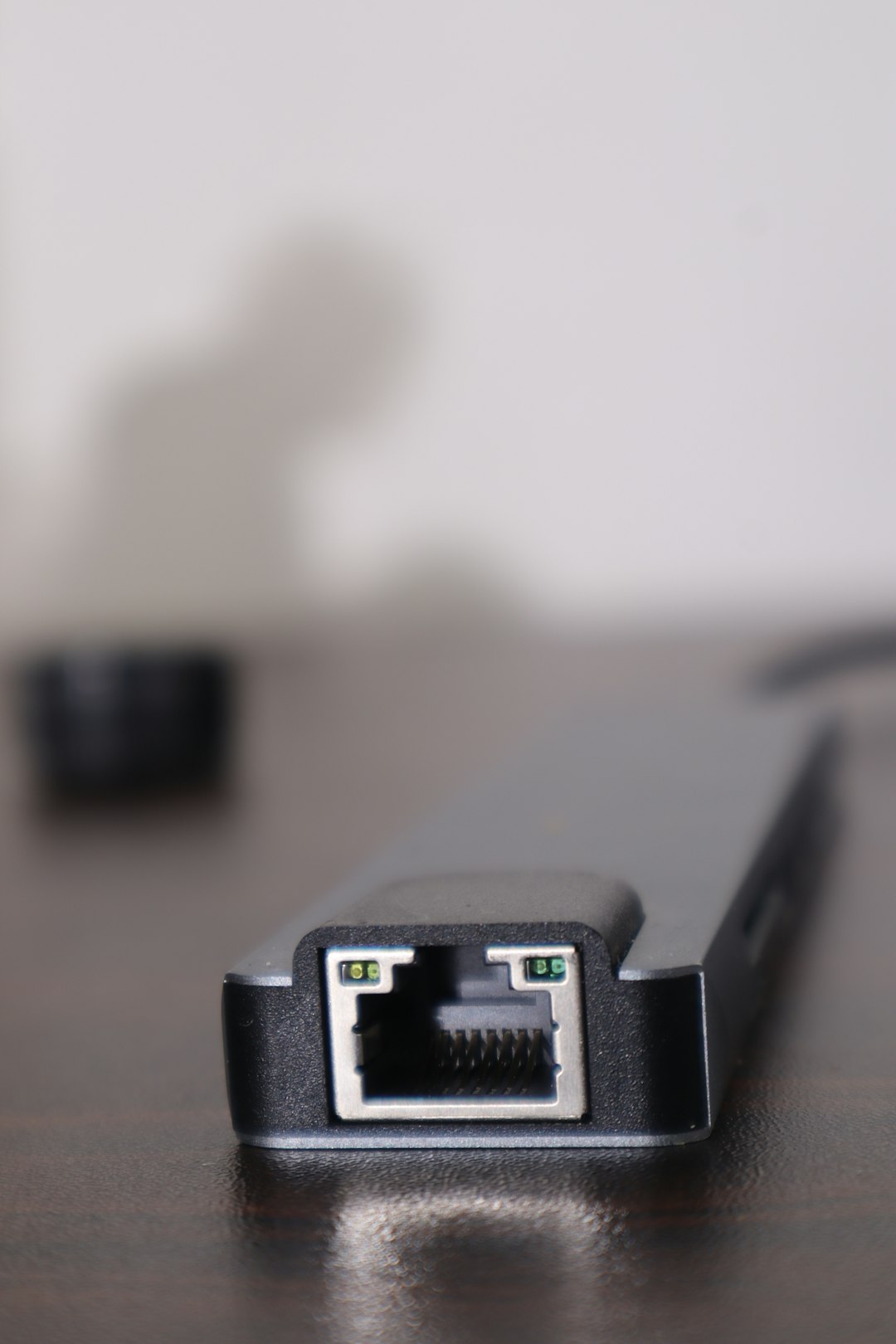
HDMI and DisplayPort cables can wear out or become partially disconnected. Even slight instability in the connection can interrupt the signal briefly, resulting in a black screen.
What to Check
- Ensure both ends of the cable are firmly plugged in.
- Inspect for bent pins (especially on older connectors).
- Try a different cable entirely.
- Switch ports on your GPU or monitor.
If switching cables fixes the issue, congratulations — you’ve solved it the easy way. Always use high-quality, certified cables for high refresh rate monitors.
4. Overheating Graphics Card
Modern GPUs generate significant heat. If cooling fails or airflow is restricted, the GPU may temporarily shut down output to protect itself, leading to black screen flashes.
Symptoms of Overheating
- Screen flickers during gaming or heavy workloads
- Loud fan noise
- System freezes followed by recovery
How to Fix Overheating
- Clean dust from your PC case and fans.
- Ensure proper airflow inside the case.
- Replace old thermal paste (advanced users).
- Monitor temperatures using tools like MSI Afterburner.
A healthy GPU should typically stay below 85°C under load. If temperatures exceed that range consistently, overheating may be the cause.
5. Power Supply Issues
Your GPU depends on stable power delivery. If your power supply unit (PSU) is failing or insufficient for your hardware, the GPU may lose power briefly — causing the screen to go black.
This is especially common after upgrading to a more powerful graphics card without upgrading the PSU.
Warning Signs of PSU Problems
- Random restarts
- System shutting down under heavy load
- Electrical buzzing noises
If suspected, testing with a higher-wattage or known working PSU can confirm the issue.
6. Hardware Failure: GPU or Monitor
If you’ve tried everything above and the problem persists, hardware failure becomes a possibility.
Image not found in postmetaTesting the GPU
- Try the GPU in another computer.
- Use integrated graphics (if your CPU supports it).
- Look for visual artifacts like colored lines or distortion.
Testing the Monitor
- Connect the monitor to a different PC.
- Use a different monitor with your system.
If the blinking occurs across multiple systems using the same monitor, the monitor likely needs repair or replacement.
7. Software Conflicts and Windows Issues
Occasionally, blinking black screens are linked to Windows Explorer crashes or background application conflicts.
Quick Software Fixes
- Restart Windows Explorer via Task Manager.
- Run sfc /scannow in Command Prompt.
- Scan for malware.
- Boot in Safe Mode to see if the problem persists.
If the issue disappears in Safe Mode, a third-party application is likely responsible.
A Step-by-Step Troubleshooting Order
To avoid confusion, follow this logical approach:
- Update or reinstall GPU drivers.
- Check refresh rate and resolution settings.
- Change cables and ports.
- Monitor GPU temperatures.
- Test power supply stability.
- Swap monitor or GPU to isolate hardware failures.
This order helps you eliminate simple causes before diving into expensive hardware replacements.
When Should You Worry?
A black screen that happens occasionally during driver updates or system startup is generally normal. However, frequent random blackouts during normal use — especially if accompanied by artifacts, crashes, or burning smells — demand immediate attention.
If your system is under warranty, avoid opening components and contact the manufacturer for assistance.
Final Thoughts
A blinking black screen may seem alarming, but in most cases, it’s a solvable issue rooted in drivers, display settings, or minor hardware connections. Rarely does it mean your entire computer is failing. By understanding how the GPU communicates with your monitor and how power and cooling systems support that process, you can diagnose the problem more confidently.
Start with software fixes — they’re quick and free. Move to cables and connections next. Only then consider hardware replacements. With a systematic approach, you can restore your display to stable, uninterrupted performance and get back to using your PC without frustration.
Technology can be complex, but solutions often start with simple steps. Don’t panic — investigate.