

The Fn key on your keyboard might seem like a magic button. It helps you control things like volume, brightness, and even keyboard lights. But what if one day it just… stops working? Don’t panic! It’s usually an easy fix.
TL;DR
If your Fn key suddenly stops working, it could be due to simple reasons like a locked keyboard, disabled settings in BIOS, or missing drivers. There are quick ways to check and troubleshoot the button. You don’t need to be a tech wizard to fix it. Follow our steps and your little helper key will be working again in no time!
What is the Fn Key?
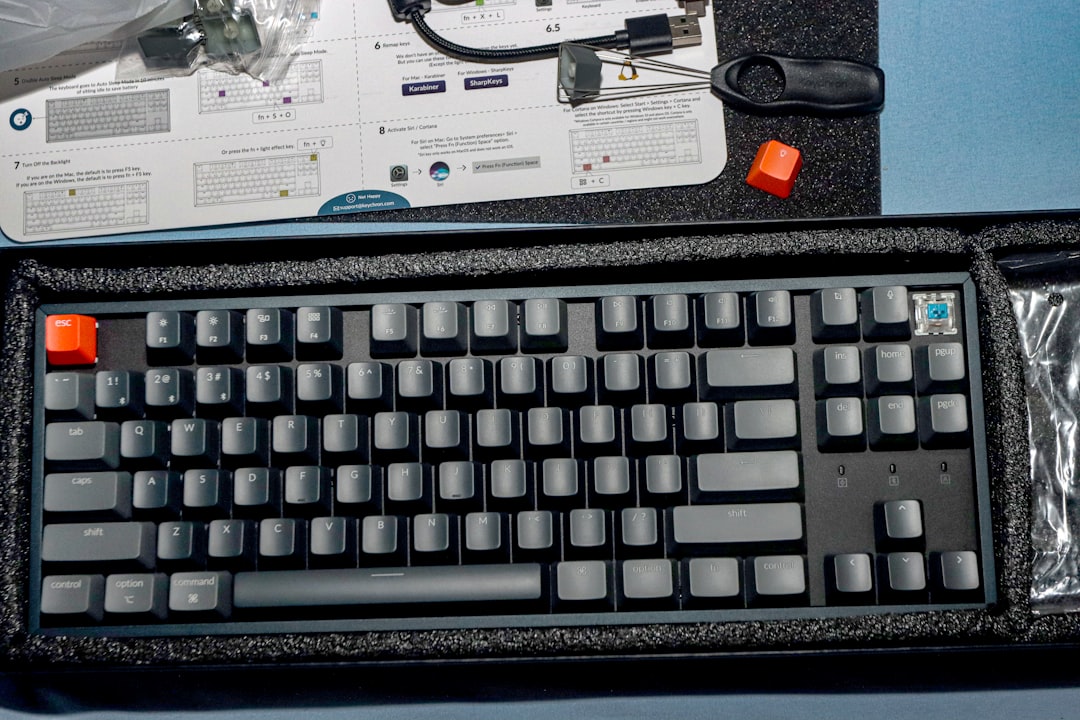
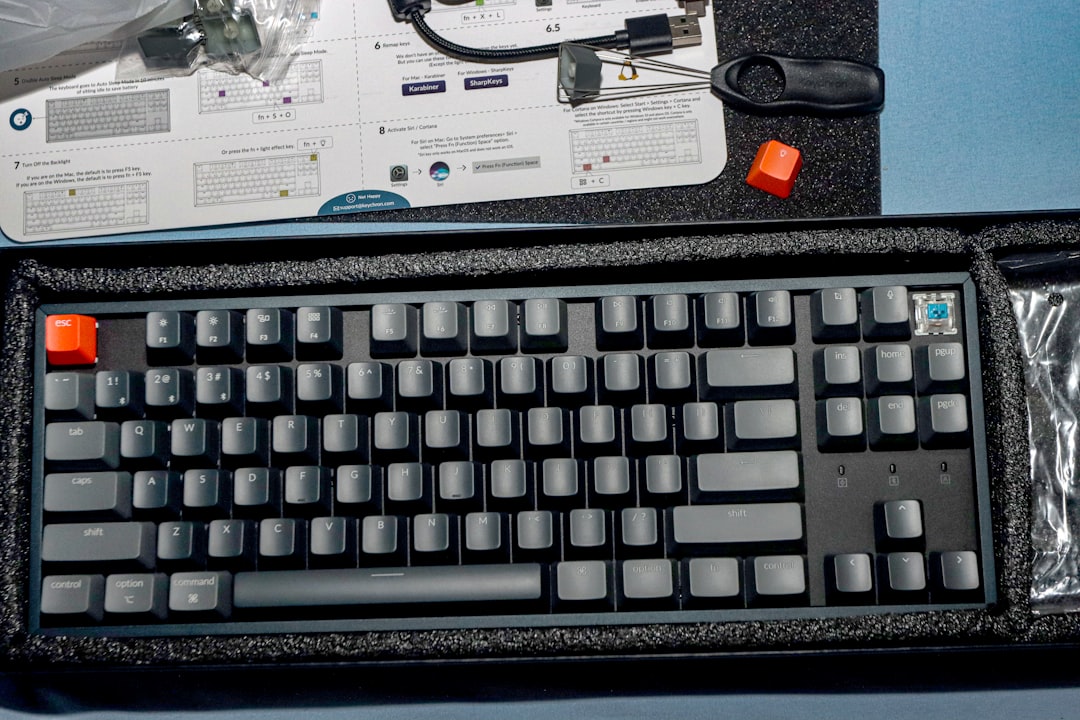
First things first. The Fn (short for “Function”) key is a special key found on laptops and some desktop keyboards. It’s usually found near the bottom-left corner of the keyboard, often next to the Ctrl key.
When you hold it down and press another key, it activates a second function on that key. For example, pressing Fn + F5 might decrease your screen brightness. Think of it like a secret code for extra powers.
Why Does the Fn Key Stop Working?
There are several reasons. Luckily, most of them are easy to fix. Here are the most common ones:
- Keyboard is locked – Some laptops let you lock the Fn key by accident.
- BIOS settings changed – The system might be set to use Function keys differently.
- Driver issues – Outdated or missing drivers can cause the key to stop working.
- Keyboard malfunction – Rare, but the keyboard could be damaged.
How to Fix It
Let’s go through some steps to get that Fn key back in action.
1. Try Toggling the Fn Lock
Some keyboards have a built-in Fn lock feature. Here’s what to try:
- Press Fn + Esc – This combo often turns the Fn lock on or off.
- Try Fn + NumLock – On some laptops, this combo toggles Fn functions.
If Fn lock was the problem, this may already fix your issue.
2. Check BIOS or UEFI Settings
This sounds spooky, but don’t worry, it’s just your computer’s basic setup screen. Here’s how to enter and adjust it:
- Restart your laptop.
- While it’s booting, press the required key to access BIOS (usually F2, Delete, or Esc – watch the screen for hints).
- Use arrow keys to navigate to Advanced or Configuration.
- Look for a setting like Action Keys Mode or Function Key Behavior.
- Change this to either Enabled or Disabled, depending on your preference.
- Save and exit BIOS using the key shown on screen (often F10).
This setting controls whether you use just the F1–F12 keys or need to press Fn + them.
3. Update or Reinstall Drivers
Drivers are like instructions your operating system uses to talk to your devices. Here’s how to fix them:
- Open the Device Manager (right-click Start and select it).
- Expand the Keyboards section.
- Right-click your keyboard and click Update Driver.
- Select Search automatically to let Windows find the driver.
If that doesn’t work, try uninstalling the driver:
- Right-click your keyboard driver, choose Uninstall device.
- Restart your computer – Windows will reinstall it automatically.
4. Run Keyboard Troubleshooter (Windows)
Windows has a built-in tool to help with keyboard issues.
- Go to Settings > System > Troubleshoot.
- Click Other troubleshooters.
- Find and run Keyboard troubleshooter.
5. Check for Manufacturer-Specific Software
Some brands install helper apps that manage your keyboard features. These apps might have been removed or disabled.
- HP – Look for HP Quick Launch Buttons.
- Dell – Try Dell QuickSet.
- Lenovo – Open Lenovo Settings or Lenovo Vantage.
- ASUS – Use ATK Package.
Go to your laptop brand’s website and redownload the app(s) if needed.
Still Not Working? Try a Few More Tricks
If none of the above worked, try these quick-win options:
- Plug in an external keyboard – Does the Fn key work there? If yes, it’s your laptop keyboard at fault.
- Check for sticky keys or accessibility options that might interfere.
- Try Safe Mode in Windows to rule out software conflicts.
What If My Fn Key Works Backwards?
Sometimes your Fn key seems flipped: you need to hold Fn to use F1–F12 instead of using them directly.
This is usually because the Action Keys Mode (in BIOS/UEFI) is turned on. Just go back into BIOS and change it to your liking. Simple!
When to Replace Your Keyboard
If all else fails and the Fn key still doesn’t budge, it may be hardware damage.
- Did something spill on the keyboard?
- Has the laptop been dropped or bumped hard?
In these cases, replacing the keyboard might be needed. Most laptop keyboards are fixable – you can take it to a repair shop or even try it yourself, if you’re feeling brave.
Final Thoughts
When your Fn key stops working, it can feel like your laptop lost a superpower. But don’t worry – 99% of the time it’s not broken, just confused.
Start simple: toggle the lock, check BIOS, and update drivers. Soon your multi-talented key will be doing its job again.
The key (pun intended) is to stay patient and try one fix at a time. You’ve got this!