
The Xbox Series X is built for powerful performance, but when its fan stops working properly, overheating can quickly become a serious threat. A malfunctioning fan can lead to sudden shutdowns, reduced performance, or even permanent hardware damage. Recognizing the warning signs early and acting quickly can save the console from costly repairs or replacement.
TLDR: If an Xbox Series X fan is not working, the console can overheat and shut down unexpectedly. Common causes include dust buildup, blocked ventilation, software glitches, or hardware failure. Immediate action—such as cleaning vents, improving airflow, or resetting the system—can prevent long-term damage. If basic troubleshooting fails, professional repair may be necessary.
The Xbox Series X relies on a single, powerful internal fan to regulate temperature. It pulls cool air from the bottom and pushes hot air out through the top vent. When that airflow is disrupted, internal temperatures rise rapidly. The following urgent fixes address the most common reasons behind fan failure and overheating issues.
1. Check for Blocked Ventilation
One of the most common reasons an Xbox Series X fan seems not to work is restricted airflow. The console’s tower design requires adequate space around it to function properly.
What to look for:
- The console placed inside a tight cabinet
- Objects stacked on top of the top vent
- Dust accumulation around intake areas
- Carpet blocking lower airflow
The console should have at least 4–6 inches of clearance on all sides, especially around the top exhaust vent. If it is positioned horizontally, ensure nothing blocks either side. Moving the console to a well-ventilated, open space often resolves overheating issues immediately.
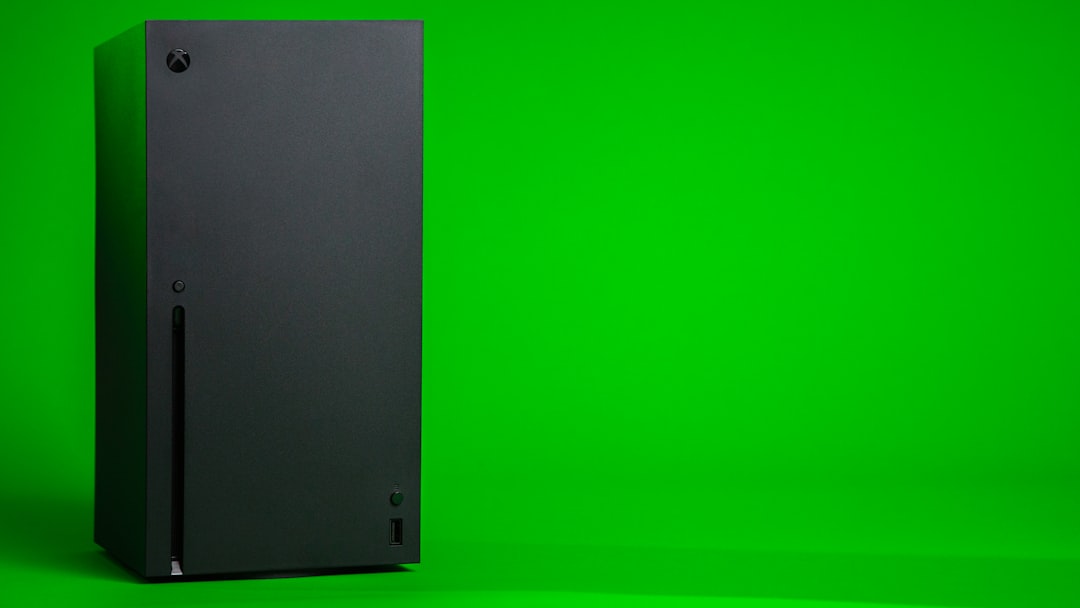
After repositioning, power on the console and monitor whether fan noise returns to normal levels and whether shutdowns stop occurring.
2. Perform a Deep External Cleaning
Dust is a major enemy of electronic cooling systems. Over time, particles accumulate inside vents and reduce airflow efficiency. Even if the fan is spinning, heavy dust buildup can make it appear as though it is malfunctioning because the airflow becomes weak.
Steps for safe cleaning:
- Turn off and unplug the console.
- Use compressed air to blow dust out of vents.
- Avoid inserting sharp objects inside the console.
- Use a soft microfiber cloth for exterior cleaning.
Short bursts of compressed air directed into the top vent and rear ports can remove loose debris. The console should remain upright during cleaning to prevent forcing dust deeper inside.
If the console is older and heavily dust-clogged, professional internal cleaning may be required to remove buildup near the heat sink and internal fan.
3. Perform a Full Power Cycle
Sometimes the issue is not mechanical but software-related. A firmware glitch or system error may prevent the fan from operating as intended.
A full power cycle resets internal components and clears temporary software faults.
Power cycle process:
- Hold the power button for 10 seconds until the console shuts off.
- Unplug the power cable for at least 2 minutes.
- Plug everything back in and restart.
This reset clears cached data and can restore normal fan behavior. Many users report that system updates or interrupted power sessions can temporarily disrupt thermal controls.
4. Update the System Software
Outdated firmware can contribute to overheating problems. Microsoft periodically releases system updates that improve thermal management and fan control algorithms.
To check for updates:
- Go to Settings
- Select System
- Choose Updates
Install any available update and restart the console. Improved thermal calibration may restore proper fan speed behavior.
5. Inspect for Internal Fan Failure
If none of the previous fixes work, the internal fan itself may be faulty. Although rare, hardware failure can occur due to manufacturing defects, voltage issues, or prolonged overheating exposure.
Signs of fan hardware failure:
- No audible fan noise during heavy gameplay
- Frequent overheating shutdowns
- Burning smell
- Console extremely hot to the touch
At this stage, the console may need professional repair. Opening the Xbox Series X without proper knowledge can void the warranty and risk damaging sensitive components.
If the console is still under warranty, contacting Microsoft Support is strongly recommended. If out of warranty, a certified repair technician can replace the internal fan and apply fresh thermal paste if necessary.
Fan Replacement Tools Comparison
| Tool | Purpose | Difficulty Level | Recommended For |
|---|---|---|---|
| Precision Screwdriver Set | Opening console housing | Moderate | Experienced users |
| Plastic Pry Tools | Separating panels safely | Moderate | DIY repairs |
| Compressed Air | Dust removal | Easy | Basic maintenance |
| Replacement Cooling Fan | Replacing faulty fan | Advanced | Technicians |
Users unfamiliar with console disassembly should avoid internal repairs.
6. Improve Overall Room Temperature and Setup
Environmental factors also play a major role in cooling performance. High room temperatures force the Xbox Series X fan to work harder.
If the console is located in:
- A small entertainment unit
- Near other heat-producing electronics
- A sunlit area
- A room without air circulation
It may struggle to maintain optimal temperatures.
Maintaining room temperatures between 60–75°F (15–24°C) provides an ideal operating environment. Adding a small external fan nearby to circulate air can also assist cooling performance.
Image not found in postmetaProper cable management also prevents airflow obstruction. Keeping the area clutter-free ensures heat can dissipate efficiently.
Warning Signs of Overheating
Recognizing early symptoms can prevent permanent damage. Common overheating indicators include:
- Unexpected shutdowns with warning messages
- Lag or performance drops
- Console casing unusually hot
- Loud or inconsistent fan noise
If the console displays an overheating warning, it should be powered off immediately and allowed to cool for at least 30 minutes.
How to Prevent Future Fan Problems
Preventive maintenance significantly reduces the risk of fan-related failures.
- Clean vents every 2–3 months
- Keep console in open air space
- Avoid smoking near electronics
- Install updates regularly
- Monitor unusual noise patterns
Consistent care extends the lifespan of both the cooling system and internal components.
When to Seek Professional Help
If overheating persists despite troubleshooting, professional service is necessary. Ignoring prolonged heat exposure can damage the GPU, CPU, or motherboard. Repair costs are significantly lower when addressed early compared to replacing the entire console.
In many cases, what appears to be a “fan not working” problem turns out to be a ventilation or dust issue. However, repeated shutdowns and total fan silence typically indicate deeper mechanical failure.
FAQ
1. How do I know if my Xbox Series X fan is not working?
If the console overheats, shuts down unexpectedly, or produces no fan noise during demanding games, the fan may not be functioning correctly.
2. Is it safe to open the Xbox Series X to check the fan?
Opening the console can void the warranty. It should only be attempted by experienced individuals or professional technicians.
3. Can dust cause the fan to stop spinning?
Heavy dust buildup can restrict movement or reduce airflow efficiency, making it seem as though the fan is malfunctioning.
4. How often should the Xbox Series X be cleaned?
External vent cleaning every 2–3 months is recommended, especially in dusty environments.
5. Does placing the console horizontally affect cooling?
No, the console is designed for both vertical and horizontal placement, but proper ventilation space must always be maintained.
6. What happens if overheating continues?
Persistent overheating can cause permanent hardware damage, including motherboard or processor failure.
7. Can a software update really fix fan problems?
Yes, in cases where the issue is related to system firmware or thermal calibration, an update can restore proper fan control.
By acting quickly and addressing cooling concerns early, users can prevent severe hardware damage and keep their Xbox Series X running smoothly for years to come.