
Remote work can feel like magic. You open a laptop. You sip coffee. Then you work with people in five cities at once. But magic needs good tools. Without them, remote work can turn into a messy pile of chats, files, meetings, and “Where is that link?” moments.
TLDR: The best remote work tools help teams talk, plan, share files, meet, focus, and stay happy. Use chat tools for quick updates, project tools for clear tasks, video tools for meetings, and focus tools to protect your brain. Pick simple tools your team will actually use. Fancy is nice, but useful is better.
Why Remote Tools Matter
Remote employees need more than Wi Fi and a laptop. They need a clear system. They need places to talk. They need places to store work. They need ways to know what is due, who owns it, and when it should be done.
Good tools reduce confusion. They save time. They help people feel connected. They also stop small problems from becoming giant flaming office meatballs.
Here is the big idea. A great remote tool should do at least one of these things:
- Make communication faster.
- Make work easier to track.
- Make files easier to find.
- Make meetings better.
- Help people focus.
- Keep the team connected.
If a tool does none of these things, it may just be digital clutter wearing a fancy hat.

1. Slack: For Fast Team Chat
Slack is one of the most popular chat tools for remote teams. It works like a digital office hallway. You can ask quick questions. You can share updates. You can send memes when the day gets weird.
Slack uses channels. A channel is like a room for a topic. You can have one for marketing. One for support. One for product. And yes, one for pets. The pet channel is very important for morale.
Best for: Quick messages, team updates, casual chat, and group discussions.
Simple tip: Do not create too many channels. If your team needs a map to find the right place to speak, you have gone too far.
2. Microsoft Teams: For Chat, Calls, and Office Work
Microsoft Teams is great for companies that already use Microsoft 365. It brings chat, video calls, calendars, and files into one place. It connects nicely with Word, Excel, PowerPoint, and Outlook.
Teams can feel a little packed at first. There are many buttons. So many buttons. But it is powerful once people learn the basics.
Best for: Companies that use Microsoft tools every day.
Simple tip: Create clear team spaces. Keep names simple. Nobody wants to search through “General Final Updated New 2.”
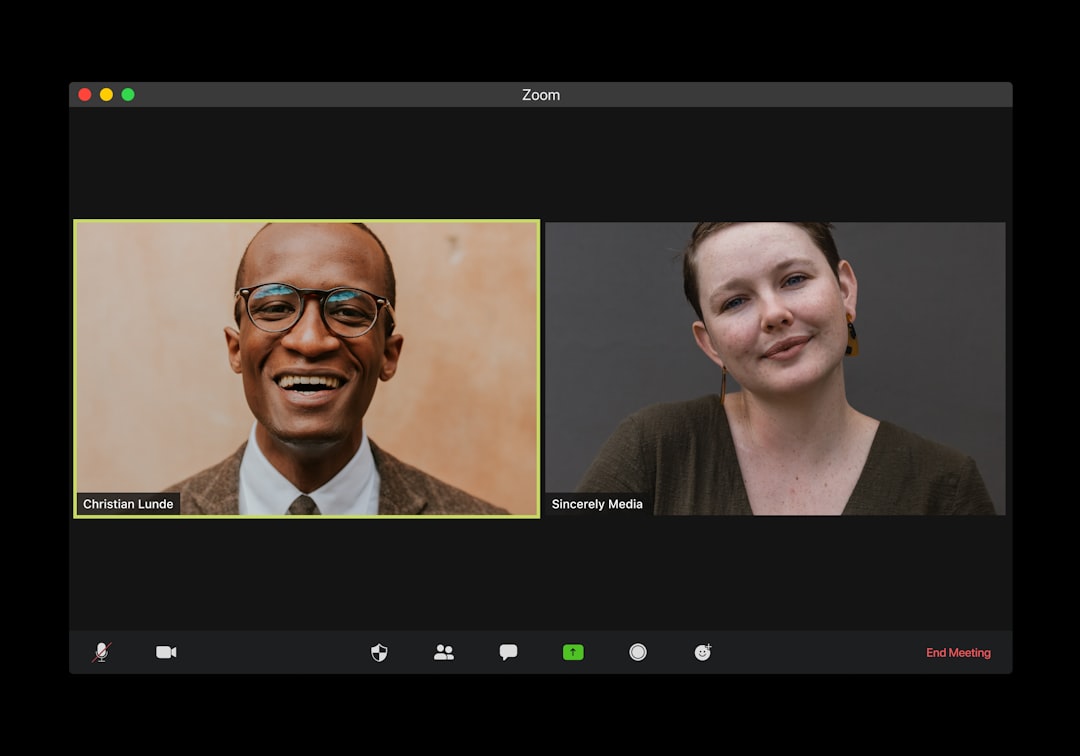
3. Zoom: For Easy Video Meetings
Zoom became famous for a reason. It is simple. It works well. It is good for meetings, webinars, interviews, and team check ins.
Video meetings help remote workers see faces. That matters. A face can say, “I understand.” It can also say, “My internet is about to betray me.”
Best for: Video calls, client meetings, large group sessions, and quick team syncs.
Simple tip: Keep meetings short. If a meeting could be an email, let it become an email. Set it free.
4. Google Meet: For Simple Browser Based Calls
Google Meet is another strong video tool. It works well if your team uses Google Workspace. You can join from a browser. Calendar invites are easy. Links are simple.
Google Meet is clean and direct. It is not trying to be a spaceship. That is a good thing.
Best for: Teams using Gmail, Google Calendar, and Google Drive.
Simple tip: Add agendas to meeting invites. Even three bullet points can save ten minutes of wandering.
5. Trello: For Visual Task Tracking
Trello uses boards, lists, and cards. It feels like sticky notes on a wall. But better. Because they do not fall behind the desk.
You can create lists like To Do, Doing, and Done. Then you move cards as work changes. It is easy to understand. Even your most tool tired teammate can get it.
Best for: Simple projects, small teams, content calendars, and visual planning.
Simple tip: Keep each card clear. Add one owner. Add one due date. Add enough details to avoid mystery.
6. Asana: For Projects With Many Moving Parts
Asana is made for project management. It helps teams plan tasks, timelines, owners, and goals. You can use lists, boards, calendars, and timelines.
Asana is helpful when work has many steps. For example, launching a campaign. Writing a report. Building a product feature. Planning a company event where someone always forgets the snacks.
Best for: Teams with complex projects and many deadlines.
Simple tip: Use templates for repeat projects. Your future self will clap quietly.
7. ClickUp: For All In One Productivity
ClickUp wants to be the tool that holds everything. Tasks. Docs. Goals. Whiteboards. Time tracking. Dashboards. It is a big toolbox.
This can be amazing. It can also be a lot. So start small. Use the features your team needs now. Add more later. Do not build a productivity castle on day one.
Best for: Teams that want one flexible workspace.
Simple tip: Decide how your team will use statuses. Keep them simple. “Open,” “In Progress,” and “Done” are often enough.
8. Notion: For Notes, Wikis, and Team Knowledge
Notion is like a digital notebook with superpowers. You can use it for meeting notes, company wikis, project plans, databases, and personal checklists.
Remote teams need a shared brain. Notion can be that brain. It keeps answers in one place. That way, people do not ask the same question forty seven times.
Best for: Documentation, notes, team handbooks, and knowledge bases.
Simple tip: Create a homepage. Link the most important pages there. Make it easy to find the good stuff.
9. Google Drive: For File Sharing and Live Editing
Google Drive is a classic. It lets teams store files, share folders, and edit documents together in real time. Multiple people can work in one doc at once. It is like a group project, but with fewer lost papers.
Google Docs, Sheets, and Slides are simple and fast. Comments make feedback easy. Version history can save you when someone deletes half a page by accident. It happens.
Best for: Shared documents, spreadsheets, presentations, and cloud storage.
Simple tip: Use clear folder names. Add dates when needed. “Stuff” is not a filing system.
10. Dropbox: For Strong Cloud Storage
Dropbox is great for storing and sharing files. It is especially useful for teams that handle large files. Designers, video editors, and content teams often like it.
Dropbox makes syncing simple. It also helps keep files organized across devices. So your work is not trapped on one laptop like a tiny digital prisoner.
Best for: File storage, file sharing, backups, and large media files.
Simple tip: Set folder permissions carefully. Not everyone needs access to everything.
11. Miro: For Online Whiteboarding
Miro is a digital whiteboard. It is great for brainstorming, mapping ideas, planning user journeys, and running workshops.
Remote teams often miss the office whiteboard. Miro brings it back. Minus the squeaky marker. Plus infinite space. That is a fair trade.
Best for: Brainstorms, diagrams, workshops, and visual collaboration.
Simple tip: Use frames to organize the board. Otherwise, your ideas may float away into the void.

12. Loom: For Video Messages
Loom lets you record your screen and voice. You can explain a task, show a bug, share feedback, or give a quick update.
This is great for remote work because not everything needs a live meeting. Sometimes a two minute video is better than a thirty minute call. Your calendar will thank you.
Best for: Screen recordings, tutorials, feedback, and async updates.
Simple tip: Keep videos short. Say what matters. Skip the ten minute warm up speech.
13. Calendly: For Easy Scheduling
Calendly helps people book meetings without the classic email tennis match. You know the one. “Does Tuesday work?” “No.” “How about Thursday?” “Also no.” “What is time?”
With Calendly, you share a link. People pick a time that works. It connects with your calendar and avoids double booking.
Best for: Client calls, interviews, demos, and team check ins.
Simple tip: Add buffer time between meetings. Your brain needs air.
14. Todoist: For Personal Task Lists
Todoist is a clean task list app. It helps remote employees manage daily work. You can add tasks, set due dates, create projects, and mark things done.
Checking off tasks feels good. It is tiny confetti for your brain.
Best for: Personal task management and daily planning.
Simple tip: Pick three top tasks each day. Do those first. The rest can line up politely.
15. Focus Tools: For Deep Work
Remote work has many distractions. Laundry. Snacks. Doorbells. That one tab you opened “for research” and now it is a video about raccoons.
Focus tools can help. Apps like Forest, Freedom, and RescueTime help block distractions, track time, or encourage deep work.
Best for: Staying focused, blocking time wasting sites, and understanding work habits.
Simple tip: Try focus blocks. Work for 25 or 50 minutes. Then take a short break. Move your body. Drink water. Be a human.
16. 1Password: For Safer Logins
1Password helps teams store and share passwords safely. Remote teams use many tools. Many tools mean many logins. Many logins mean trouble if passwords are weak or reused.
A password manager keeps things safer. It also saves time. No more “Can someone send me the password?” messages in chat. Please do not do that.
Best for: Password storage, secure sharing, and team security.
Simple tip: Use strong unique passwords for every tool. Let the password manager remember them.
17. Zapier: For Automation
Zapier connects apps and automates small tasks. For example, it can send form responses to a spreadsheet. It can create a task when a sale closes. It can alert a Slack channel when something important happens.
Automation is like hiring a tiny robot assistant. It does boring things without snacks or complaints.
Best for: Connecting tools and saving time on repeated tasks.
Simple tip: Automate one annoying task first. Start with the thing everyone complains about.
How to Pick the Right Tools
You do not need every tool on this list. Please do not sign up for everything today. Your team will revolt. They may do it politely, but still.
Start with the basics:
- Chat: Slack or Microsoft Teams.
- Video: Zoom or Google Meet.
- Projects: Trello, Asana, or ClickUp.
- Files: Google Drive or Dropbox.
- Knowledge: Notion.
- Security: 1Password.
Then ask simple questions:
- Is this tool easy to learn?
- Does it solve a real problem?
- Will the team actually use it?
- Does it work with our other tools?
- Is the price fair for the value?
The best tool is not always the most popular. It is the one that fits your team. Like shoes. But with fewer blisters.
Remote Tool Rules That Keep Everyone Sane
Tools are only helpful when people use them well. A messy tool is just a messy desk with a login screen.
Try these simple rules:
- Use one source of truth. Decide where final information lives.
- Write clear task names. “Update homepage copy” is better than “Website thing.”
- Respect quiet time. Not every message needs an instant reply.
- Record key decisions. Future teammates will bless you.
- Review tools often. Remove what nobody uses.
Also, set expectations. Tell people when to use chat, email, tasks, or meetings. This prevents tool soup. Tool soup is not delicious.
Final Thoughts
Remote work can be smooth, fun, and productive. But it needs the right setup. The tools above help teams talk, plan, share, meet, focus, and stay secure.
Start simple. Pick tools that solve real problems. Teach people how to use them. Keep your system clean. And remember, no tool can fix unclear goals or endless meetings. But the right tools can make good teamwork feel easy.
With a smart toolkit, remote employees can do great work from anywhere. A home office. A coworking space. A quiet cabin. Or a kitchen table guarded by a very serious cat.