

When the Dropbox website refuses to load and displays a blank screen, it can disrupt productivity, delay file sharing, and create unnecessary frustration. Whether accessing files for work, school, or personal use, users depend on seamless access. Fortunately, most blank screen issues are caused by common browser or network problems that can be resolved quickly with the right steps. Understanding the root cause is the first step toward restoring access.
TLDR: A blank screen on the Dropbox website is usually caused by browser cache issues, outdated software, extensions, network problems, or temporary server outages. Clearing cache and cookies, disabling extensions, updating the browser, or trying a different device often resolves the issue. Checking Dropbox’s server status can also save time if the issue is on their end. Most fixes take only a few minutes to complete.
Why the Dropbox Website Shows a Blank Screen
A blank screen typically indicates that the browser is failing to properly load or render Dropbox’s web interface. This can happen due to corrupted cache files, conflicts from browser extensions, outdated browser versions, unstable internet connections, or JavaScript errors. In rare cases, the problem stems from Dropbox servers experiencing downtime.

Modern web applications like Dropbox rely heavily on scripts and cloud-based processes. When even one component fails to load correctly, the entire page may appear empty. Fortunately, troubleshooting does not usually require advanced technical skills.
Fix 1: Clear Browser Cache and Cookies
One of the most common causes of a blank Dropbox page is corrupted or outdated cache data. Browsers store files to improve loading speed, but over time these stored files can conflict with updated versions of the website.
How to clear cache and cookies:
- Open browser settings.
- Navigate to Privacy and Security.
- Select Clear browsing data.
- Choose Cookies and Cached Images/Files.
- Confirm and restart the browser.
After clearing data, reload Dropbox. In many cases, this step alone resolves the blank screen issue.
Fix 2: Disable Browser Extensions
Browser extensions can interfere with how websites function. Ad blockers, script blockers, and privacy tools are frequent culprits because Dropbox relies on active scripts to display content.

Users should try loading Dropbox in Incognito or Private Mode. If it works there, an extension is likely causing the problem.
Steps to identify the extension:
- Open browser extension settings.
- Disable all extensions.
- Reload Dropbox.
- Enable extensions one at a time to find the conflicting one.
Once identified, the problematic extension can be removed or temporarily disabled when accessing Dropbox.
Fix 3: Update or Switch the Browser
An outdated browser may not support the latest website technologies used by Dropbox. Missing updates can result in partial or failed page rendering.
Users should:
- Check for browser updates in settings.
- Install the latest version.
- Restart the browser.
If updating does not work, trying a different browser is recommended. For example:
- Switch from Chrome to Firefox.
- Switch from Safari to Chrome.
- Try Microsoft Edge if others fail.
This step helps determine whether the issue is browser-specific. If Dropbox loads fine elsewhere, the original browser may need resetting or reinstalling.
Fix 4: Check Internet Connection
Sometimes the website appears blank because certain elements fail to load due to unstable or slow internet connections. Even if other websites function, Dropbox may struggle if key scripts or data packets don’t complete loading.
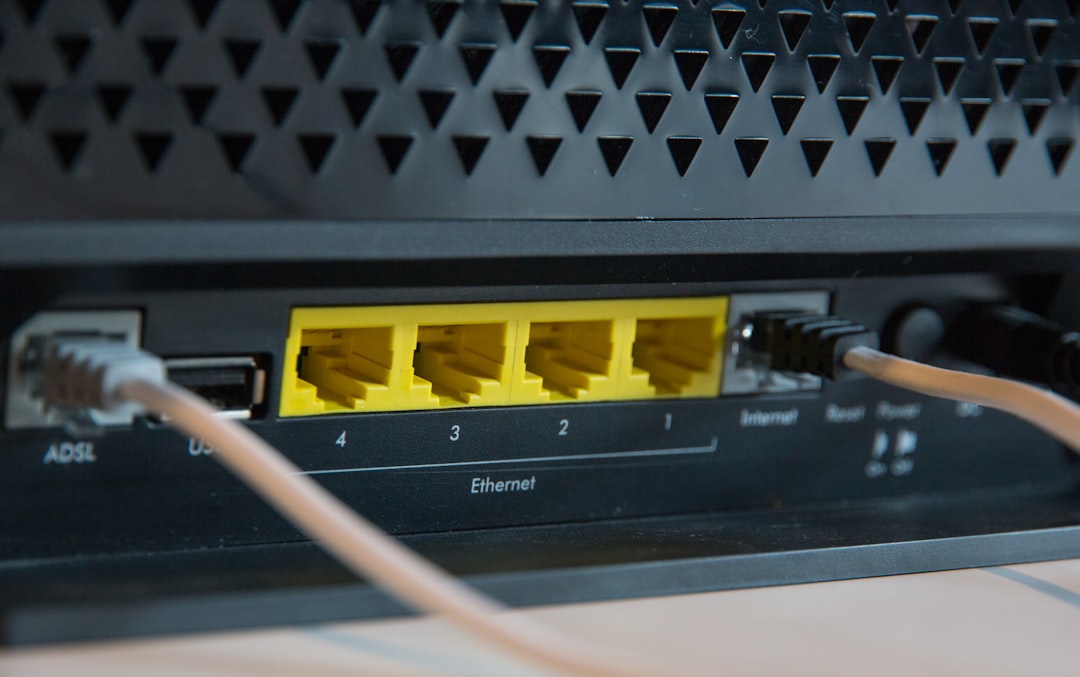
To troubleshoot network issues:
- Restart the router and modem.
- Switch to a different Wi-Fi network if possible.
- Try using mobile data temporarily.
- Run an online speed test.
Corporate or school networks may also restrict certain cloud services. Testing Dropbox on a different network can quickly confirm whether network restrictions are responsible.
Fix 5: Disable VPN or Firewall Temporarily
VPNs and firewalls add security layers but may occasionally block website scripts or interfere with secure connections. If Dropbox loads partially or not at all, temporarily disabling a VPN can help.
Users should:
- Turn off VPN services.
- Disable proxy settings.
- Temporarily pause firewall software.
After disabling these services, reload Dropbox. If the website loads properly, adjusting VPN server locations or firewall rules may permanently solve the issue.
Important: Security software should always be re-enabled after testing.
Fix 6: Check Dropbox Server Status
Not every blank screen is caused by local device issues. Occasionally, Dropbox servers experience downtime or technical disruptions.
Users can check:
- Dropbox’s official status page.
- Social media accounts for outage announcements.
- Downtime tracking websites.
If servers are down, the only solution is to wait until Dropbox resolves the issue. Fortunately, such outages are usually addressed quickly.
Additional Troubleshooting Steps
If none of the primary fixes work, additional steps may include:
- Restarting the device to clear temporary memory issues.
- Resetting browser settings to default configuration.
- Checking JavaScript settings to ensure they are enabled.
- Trying Dropbox desktop or mobile app as an alternative access method.
Sometimes a simple restart resolves conflicts that are not immediately obvious.
Preventing Future Blank Screen Issues
To minimize the chances of experiencing the problem again, users should follow good browsing and maintenance habits:
- Keep browsers consistently updated.
- Limit the number of unnecessary extensions.
- Regularly clear outdated cache files.
- Maintain a stable internet connection.
- Use reputable VPN and security tools.
Routine maintenance significantly reduces compatibility conflicts and performance problems.
When to Contact Dropbox Support
If all troubleshooting steps fail, contacting Dropbox Support may be necessary. Providing the following details can help speed up resolution:
- Browser type and version.
- Operating system details.
- Screenshots of the issue.
- Steps already attempted.
Support teams can identify account-specific or regional issues that may not be widely reported.
Conclusion
A blank screen on the Dropbox website may seem alarming at first, especially when important documents are at stake. However, the majority of cases stem from minor browser or network conflicts that can be resolved with simple troubleshooting steps. From clearing cache and disabling extensions to updating browsers and checking server status, users have multiple reliable solutions at their disposal. By following these six fixes methodically, access is typically restored within minutes.
Frequently Asked Questions (FAQ)
1. Why does Dropbox load as a white or blank page?
This usually happens due to corrupted browser cache, script-blocking extensions, outdated browsers, or network issues preventing full page rendering.
2. Does clearing cache delete Dropbox files?
No. Clearing cache only removes locally stored browser data. Files stored on Dropbox servers remain unaffected.
3. Why does Dropbox work in Incognito mode but not normal mode?
If Dropbox works in Incognito mode, a browser extension or cached data is likely causing the problem in regular browsing mode.
4. Can a VPN cause Dropbox to not load?
Yes. Some VPN servers may block or improperly route Dropbox connections, resulting in loading errors or blank screens.
5. How do users know if Dropbox is down?
They can visit Dropbox’s official status page or check outage-tracking websites to confirm whether there is a service interruption.
6. Is the Dropbox desktop app affected by browser issues?
No. Browser-related problems typically only impact the website. The desktop and mobile apps function independently.
7. How long does it take to fix the issue?
Most blank screen issues can be resolved within 5–15 minutes by following the troubleshooting steps outlined above.