
Windows 11 gives users many personalization options, but it still does not include a built-in setting for using an animated GIF as a desktop wallpaper. A person can easily choose a static image through the Settings app, yet GIF support requires an extra tool or workaround. Fortunately, setting a GIF as wallpaper on Windows 11 is not difficult when the right method is used.
TLDR: Windows 11 does not natively support GIF wallpapers, so a user needs a third-party app such as Lively Wallpaper, Wallpaper Engine, or a similar animated wallpaper program. The easiest free method is usually Lively Wallpaper, which can apply GIFs, videos, and web animations to the desktop. For the best result, the GIF should be high quality, properly sized, and not too large so that it does not slow down the computer.
Why Windows 11 Does Not Directly Support GIF Wallpapers
Although Windows 11 has a modern interface and many visual effects, its default wallpaper system is designed mainly for static images. Users can open Settings > Personalization > Background and choose a picture, solid color, or slideshow, but animated GIF files are not supported as live desktop backgrounds.
This limitation exists because animated wallpapers use more system resources than static images. A GIF must keep playing in the background, which can affect battery life, CPU usage, GPU usage, and overall performance. Microsoft has generally avoided adding this feature directly to Windows, especially because many users run Windows on laptops, tablets, and office computers where efficiency is important.
However, modern PCs are powerful enough to handle lightweight animated wallpapers. With the right app, a GIF wallpaper can run smoothly while still allowing the user to pause it when full-screen programs, games, or battery-saving modes are active.
Best Methods to Set a GIF as Wallpaper in Windows 11
There are several ways a person can use a GIF as wallpaper in Windows 11. The best option depends on whether the user wants a free solution, a paid app with more features, or a simple temporary workaround.
- Lively Wallpaper: A popular free and open-source app that supports GIFs, videos, web pages, and animated backgrounds.
- Wallpaper Engine: A paid app available on Steam with a large library of animated wallpapers and advanced customization options.
- Plastuer or similar tools: Lightweight apps designed specifically for animated GIF and video wallpapers.
- VLC Media Player workaround: A temporary method that can play a video on the desktop, though it is not ideal for permanent wallpaper use.
For most Windows 11 users, Lively Wallpaper is the recommended starting point because it is free, easy to use, and works well with GIF files.
Method 1: Set a GIF as Wallpaper Using Lively Wallpaper
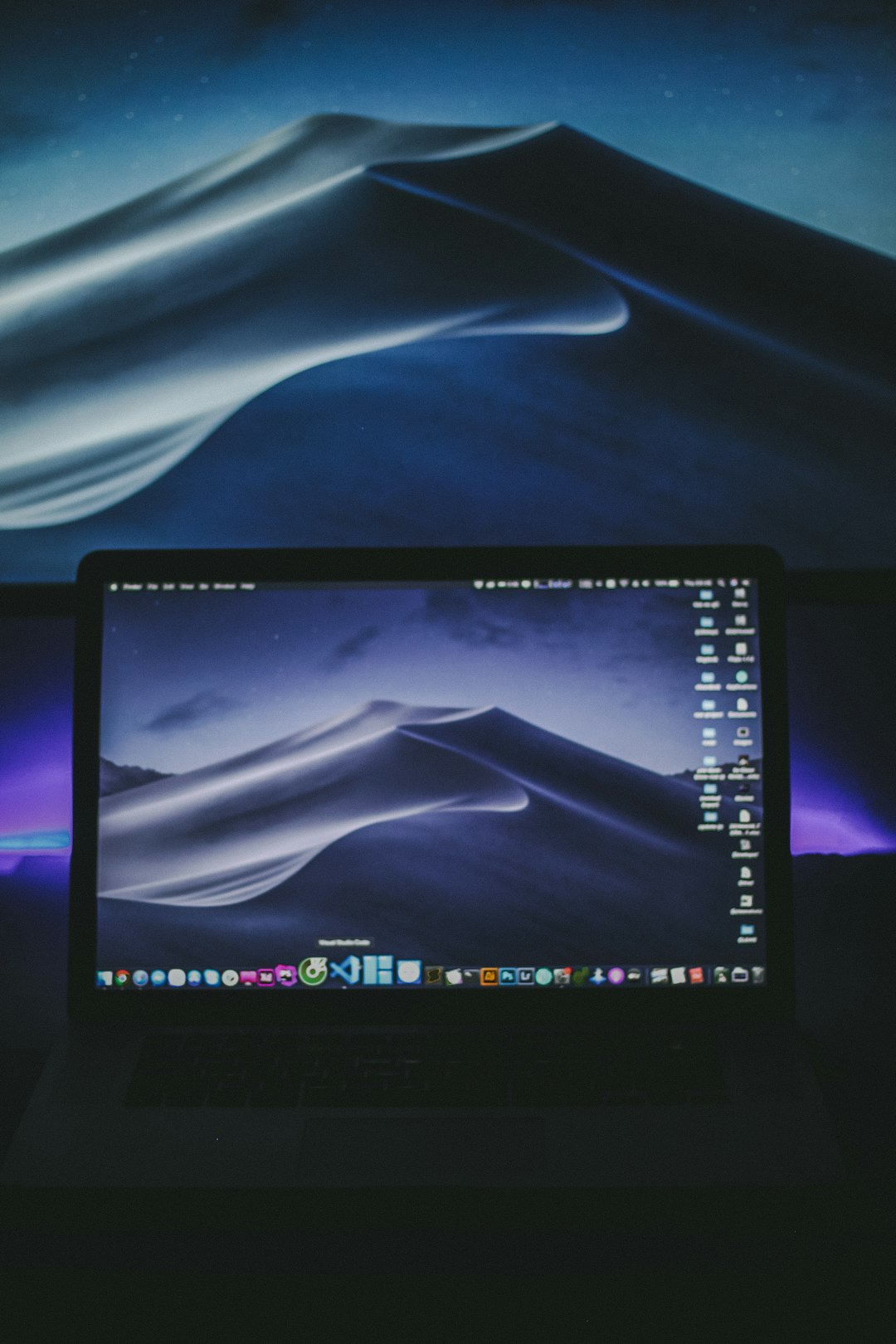
Lively Wallpaper is one of the simplest tools for applying a GIF wallpaper on Windows 11. It supports multiple animated formats and can automatically pause wallpapers when other apps are running in full screen. This helps reduce unnecessary resource usage.
Step 1: Install Lively Wallpaper
A user can install Lively Wallpaper from the Microsoft Store or from its official project source. The Microsoft Store version is usually the easiest for everyday users because it installs like a normal Windows app and receives updates automatically.
- Open the Microsoft Store on Windows 11.
- Search for Lively Wallpaper.
- Select the app and click Get or Install.
- Wait for the installation to finish.
- Open the app from the Start menu.
Step 2: Add the GIF File
After opening Lively Wallpaper, the user can add a GIF file directly to the app’s library.
- Launch Lively Wallpaper.
- Click the plus button or Add Wallpaper option.
- Select Choose a file.
- Browse to the folder where the GIF is saved.
- Select the GIF and confirm.
The GIF will be imported into the Lively Wallpaper library. The app may show a preview, allowing the user to verify that the animation plays correctly.
Step 3: Apply the GIF as Wallpaper
Once the GIF appears in the library, applying it is usually as simple as clicking on it. Lively Wallpaper will place the animated GIF on the desktop background. If the computer has multiple monitors, the user may be asked whether to apply it to one screen or all screens.
For a cleaner desktop look, the user should choose a GIF that matches the screen resolution. For example, a 1920 x 1080 GIF works best on a Full HD display, while a 2560 x 1440 GIF is better for a 1440p monitor. Low-resolution GIFs may appear blurry, stretched, or pixelated.
Step 4: Adjust Performance Settings
Lively Wallpaper includes settings that help control how much power the animated wallpaper uses. These options are useful for laptops and lower-spec computers.
- Pause when apps are full screen: This stops the GIF while games, videos, or presentations are running.
- Pause on battery power: This saves energy when the laptop is unplugged.
- Lower playback quality: This can improve performance on older PCs.
- Choose display behavior: The wallpaper can be applied to one monitor, duplicated, or stretched across multiple screens.
These settings help keep the desktop attractive without making the computer feel slow.
Method 2: Use Wallpaper Engine for More Advanced Options
Wallpaper Engine is another excellent option for setting animated wallpapers on Windows 11. It is a paid application available through Steam, but it offers a large collection of user-created animated wallpapers, including GIF-style animations, videos, interactive backgrounds, and audio-responsive designs.
Unlike simple GIF wallpaper tools, Wallpaper Engine gives users more control over playback, effects, scaling, frame rate, and performance. It is especially useful for users who want a highly customized desktop setup.
How to Use Wallpaper Engine
- Open Steam and purchase or install Wallpaper Engine.
- Launch the program after installation.
- Use the built-in library or browse wallpapers from the Workshop.
- To use a personal GIF, import it through the wallpaper editor or file import option.
- Apply the GIF or animated wallpaper to the desktop.
Wallpaper Engine is a good choice for users who want more than a basic GIF. However, for someone who only needs to set one simple GIF as wallpaper, a free tool like Lively Wallpaper may be enough.
Image not found in postmetaMethod 3: Convert the GIF to a Video File
Sometimes a GIF may not play smoothly as wallpaper, especially if it is large, poorly optimized, or has a high frame count. In that case, converting the GIF to a video format such as MP4 can improve performance.
Many animated wallpaper apps handle MP4 files more efficiently than GIF files. Video formats can provide better compression, smoother playback, and smaller file sizes. A user can convert a GIF to MP4 using a trusted desktop converter or an online conversion tool, then import the video into Lively Wallpaper or Wallpaper Engine.
This method is especially useful when the GIF is long or high resolution. Instead of forcing Windows to continuously process a heavy GIF, the wallpaper app can play a more optimized video version.
Tips for Choosing the Right GIF Wallpaper
Not every GIF makes a good wallpaper. Some animations look nice in a small chat window but become distracting or unattractive when stretched across an entire desktop. A user should choose carefully to get the best visual result.
- Use the correct resolution: The GIF should match or closely match the monitor resolution.
- Avoid very fast motion: Rapid flashing or constant movement can become distracting.
- Choose seamless loops: A smooth loop looks more professional and less jarring.
- Keep file size reasonable: Huge GIFs can consume more memory and processing power.
- Consider desktop icon visibility: Bright or busy animations can make icons hard to read.
- Use darker backgrounds when possible: Darker animated wallpapers often look cleaner and may be easier on the eyes.
A well-chosen GIF should enhance the desktop, not interfere with productivity. Subtle motion often works better than a chaotic animation.
How to Reduce Lag When Using a GIF Wallpaper
If the desktop becomes slow after applying a GIF wallpaper, the issue is usually related to file size, animation complexity, or system resources. A user can improve performance with a few adjustments.
- Use a smaller or optimized GIF: Reducing resolution and frame rate can make a big difference.
- Convert the GIF to MP4: Video playback is often smoother and more efficient.
- Enable pause settings: The wallpaper should pause while full-screen apps or games are active.
- Close unused background apps: Freeing memory and CPU resources can help.
- Update graphics drivers: Newer drivers can improve animation performance.
On laptops, animated wallpapers may also drain the battery faster. For this reason, it is wise to configure the wallpaper app to pause or stop when the device switches to battery mode.
Can a GIF Wallpaper Affect Gaming or Work?
A GIF wallpaper can affect gaming or demanding work if it continues running in the background. Most modern wallpaper apps solve this problem by automatically pausing animations when a game, video editor, design program, or full-screen application is open.
For people who use their PC for gaming, video editing, 3D rendering, or streaming, performance settings are important. The safest option is to enable pause on full-screen applications and pause on battery power. This makes the animated wallpaper visible during normal desktop use but prevents it from taking resources during demanding tasks.
How to Remove a GIF Wallpaper
Removing a GIF wallpaper is simple. In most wallpaper apps, the user can select a different wallpaper, stop the animated wallpaper, or close the app entirely. If Lively Wallpaper is being used, the person can open the app and choose a static wallpaper or exit Lively from the system tray.
To return to a normal Windows 11 wallpaper, the user can do the following:
- Right-click the desktop and choose Personalize.
- Select Background.
- Choose Picture, Solid color, or Slideshow.
- Select a standard image as the wallpaper.
If the animated wallpaper app is set to start with Windows, it may need to be disabled from the app settings or from Task Manager > Startup apps.
Important Safety Advice
When installing software to set a GIF as wallpaper, a user should only download apps from trusted sources. Animated wallpaper apps often need permission to run in the background, so it is important to avoid unknown programs from suspicious websites.
The safest approach is to use reputable apps, keep them updated, and scan downloaded GIFs or media files if they come from unfamiliar sources. A user should also avoid installing extra bundled software during setup. If an installer asks to add toolbars, browser extensions, or unrelated utilities, it is better to cancel and find a cleaner alternative.
Conclusion
Setting a GIF as wallpaper in Windows 11 is possible, even though the operating system does not support it directly. A user can achieve the effect with third-party tools such as Lively Wallpaper or Wallpaper Engine. For most people, Lively Wallpaper is the easiest free solution, while Wallpaper Engine offers more advanced customization for users who want a larger animated wallpaper library.
The key is to choose a high-quality, well-optimized GIF and configure performance settings properly. When done correctly, an animated GIF wallpaper can make a Windows 11 desktop feel more personal, modern, and visually interesting without causing major slowdowns.
FAQ
Can Windows 11 set a GIF as wallpaper without an app?
No. Windows 11 does not natively support GIF files as desktop wallpapers. A user needs a third-party animated wallpaper app or a workaround.
What is the easiest free way to set a GIF as wallpaper in Windows 11?
The easiest free method is usually Lively Wallpaper. It allows users to import GIFs, videos, and web-based animated backgrounds.
Does using a GIF wallpaper slow down a PC?
It can, depending on the GIF size, resolution, frame rate, and the computer’s hardware. Performance settings, such as pausing the wallpaper during full-screen apps, can reduce the impact.
Is Wallpaper Engine better than Lively Wallpaper?
Wallpaper Engine offers more customization and a large wallpaper library, but it is paid. Lively Wallpaper is free and is often enough for users who simply want to apply a GIF wallpaper.
Can a GIF wallpaper drain laptop battery?
Yes. Since the animation keeps running, it may use extra power. Laptop users should enable settings that pause animated wallpapers while on battery.
Should a GIF be converted to MP4 for wallpaper use?
In many cases, yes. MP4 files are often smoother and more efficient than GIFs, especially for longer or higher-resolution animations.
How can a user stop the animated wallpaper?
The user can open the wallpaper app and stop the wallpaper, choose a different background, or close the app from the system tray. They can also return to a normal wallpaper through Windows 11 personalization settings.