
Your Mac can feel like a beautifully organized studio or a cluttered garage, depending on the tools you keep within reach. The best Mac “tool boxes” are not single-purpose gimmicks; they are collections of utilities that help you launch faster, automate boring work, monitor performance, clean storage, manage windows, and keep your system feeling responsive. Whether you are a designer, developer, writer, student, entrepreneur, or everyday power user, the right mix of apps can turn macOS into a smoother, sharper workspace.
TLDR: The best Mac productivity and optimization tool boxes combine automation, cleanup, monitoring, window management, and file organization. Start with an app launcher such as Raycast or Alfred, add a maintenance utility like CleanMyMac X or OnyX, and use tools such as Hazel, Bartender, iStat Menus, and DaisyDisk to keep your system tidy and efficient. Avoid installing too many utilities at once; choose a focused set that solves real workflow problems.
What Makes a Great Mac Tool Box?
A strong Mac tool box should help you do three things: save time, reduce friction, and protect system health. macOS is already polished, but it does not automatically organize your downloads, reveal what is eating disk space, create custom keyboard workflows, or show you detailed performance data in the menu bar. That is where the right utilities become invaluable.
The best tools share a few traits:
- They stay out of your way until you need them.
- They solve repeated problems, not imaginary ones.
- They are lightweight and do not slow your Mac down.
- They respect privacy and explain what permissions they require.
- They integrate with macOS instead of fighting against it.
Think of your Mac tool box like a physical desk setup. You want the right keyboard, lamp, notebook, and cable organizer—not ten gadgets that create more mess than they solve.
1. Raycast and Alfred: Command Centers for Your Mac
If Spotlight feels too basic, Raycast and Alfred are the upgrades that make your Mac feel futuristic. Both are launcher apps, but calling them “launchers” understates their value. They can open apps, search files, run workflows, manage clipboard history, calculate conversions, control windows, and trigger automation from a simple keyboard shortcut.
Raycast is especially appealing if you like a modern interface and built-in extensions. You can connect it to tools like GitHub, Jira, Google Drive, Notion, and calendar apps. It is excellent for users who want powerful features without building everything from scratch.
Alfred, on the other hand, is a classic Mac power-user favorite. With the paid Powerpack, Alfred becomes a workflow machine. You can create custom searches, snippets, file actions, and multi-step automations. It rewards users who enjoy tailoring their system exactly to their habits.
Best for: anyone who wants to stop clicking through folders, menus, and browser tabs all day.
2. CleanMyMac X and OnyX: Maintenance Without the Guesswork
System optimization is an area where it is easy to go too far. A Mac does not need constant “boosting,” and many old-fashioned cleaner apps make exaggerated promises. Still, responsible maintenance can help you remove junk files, uninstall apps properly, clear outdated caches, and spot suspicious background items.
CleanMyMac X is one of the most approachable all-in-one maintenance tools. It offers storage cleanup, app uninstallation, malware scanning, privacy cleanup, login item management, and helpful visual reports. Its interface is friendly enough for beginners, but the features are useful even for experienced users who want a quick overview of system clutter.
OnyX is a more technical, free utility for macOS maintenance. It can verify system structure, run maintenance scripts, clear caches, rebuild databases, and expose certain hidden settings. OnyX is powerful, but it is better suited to users who understand what they are changing. If you want a point-and-click cleanup dashboard, choose CleanMyMac X. If you prefer a no-frills maintenance toolkit, OnyX is worth keeping nearby.
Tip: Do not clear caches obsessively. Caches often make apps faster. Use cleanup tools when you are troubleshooting, reclaiming space, or removing genuine clutter.
3. DaisyDisk and GrandPerspective: See Where Your Storage Went
Few things interrupt productivity like the dreaded message that your disk is almost full. macOS has built-in storage recommendations, but visual disk analyzers make the problem much easier to understand.
DaisyDisk presents your storage as a colorful interactive map, letting you quickly identify huge folders, forgotten downloads, old video exports, device backups, and bulky app data. It is fast, elegant, and satisfying to use.
GrandPerspective is a free alternative that displays your disk as a block map. It is less polished than DaisyDisk, but it is extremely useful for finding oversized files hiding in unexpected places.
Best for: creators, developers, photographers, and anyone with a MacBook that somehow has only 12 GB free despite “not saving that much.”
4. Hazel: Automatic File Organization
Hazel is one of the most quietly powerful Mac utilities ever made. It watches folders and performs actions based on rules you create. For example, Hazel can move invoices into a finance folder, rename screenshots by date, delete old downloads after 30 days, sort PDFs by contents, or send files to the trash when they match certain criteria.
Used well, Hazel can transform your Downloads folder from a digital junk drawer into a self-cleaning workspace. You can create simple rules in minutes, then build more advanced systems over time. It is especially helpful if your work involves recurring documents, client files, screenshots, exports, or scanned receipts.
- Move image files to a design folder automatically.
- Archive old project files after a deadline.
- Rename invoices using dates and vendor names.
- Empty the trash on a schedule.
Hazel feels less like an app and more like a tiny assistant tidying up after you.
5. Keyboard Maestro and Shortcuts: Automation for Serious Time Savings
If you repeat the same computer task more than a few times a week, automation is worth considering. Keyboard Maestro is one of the most advanced automation tools for Mac. It can simulate clicks, type text, move windows, run scripts, manipulate the clipboard, open sets of apps, and create custom palettes. It is a favorite among editors, programmers, writers, and operations teams because it can automate almost anything.
Apple’s built-in Shortcuts app is also becoming more useful on macOS. It is not as deep as Keyboard Maestro for Mac-specific automation, but it works well across Apple devices and supports actions from many apps. Shortcuts is a good starting point if you want simple automations like resizing images, starting focus modes, creating calendar events, or exporting notes.
Recommended approach: start with Shortcuts for simple tasks, then graduate to Keyboard Maestro when you need more control.
6. BetterTouchTool: Customize Trackpad, Mouse, and Keyboard Actions
BetterTouchTool is a dream utility for anyone who loves custom controls. It lets you assign actions to trackpad gestures, mouse buttons, keyboard shortcuts, Touch Bar buttons, and even window snapping zones. You can create gestures to open apps, move windows, paste text, run scripts, or trigger menu commands.
For example, you could set a three-finger tap to open your task manager, a corner click to lock your screen, or a keyboard shortcut to arrange your writing apps side by side. Once configured, BetterTouchTool makes your Mac feel personal, fast, and almost physical in the way it responds to your habits.
7. Rectangle, Magnet, and Moom: Better Window Management
Window management is one of the biggest productivity gaps in macOS. If you frequently drag windows around manually, a window tool is an instant upgrade.
Rectangle is a free and excellent option for snapping windows into halves, thirds, corners, and full-screen layouts using keyboard shortcuts. Magnet offers similar simplicity with a polished interface. Moom is more customizable, allowing saved window layouts and precise positioning.
These tools are especially useful on large monitors, ultrawide displays, or MacBook setups with external screens. They help you keep reference material, notes, browsers, and communication apps exactly where they belong.
8. Bartender: Take Control of the Menu Bar
As your tool box grows, your Mac menu bar can become crowded with tiny icons. Bartender solves this by letting you hide, rearrange, and reveal menu bar items only when needed. It is a small utility, but it makes a big visual difference.
You can keep essentials like battery, Wi-Fi, and calendar visible while hiding rarely used icons behind a secondary bar. For productivity-minded users, this reduces distraction and keeps the top of the screen clean.
9. iStat Menus and Activity Monitor: Know What Your Mac Is Doing
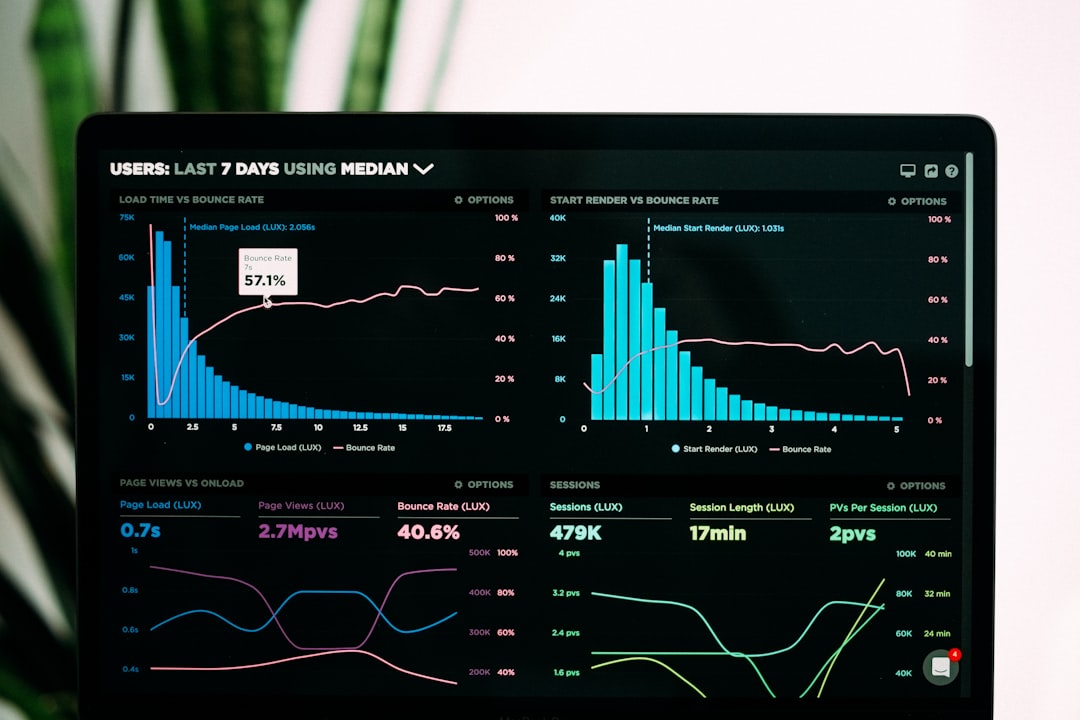
When your Mac feels hot, slow, or unusually loud, guessing is not productive. iStat Menus gives you detailed system monitoring in the menu bar, including CPU usage, memory pressure, disk activity, temperatures, fan speeds, network traffic, and battery health. It is beautifully designed and highly configurable.
For a free built-in option, Activity Monitor is still essential. It shows which apps are using the most CPU, memory, energy, disk, and network resources. Learn to check Activity Monitor before blaming the whole system. Often, the issue is one runaway browser tab, sync process, or background app.
10. AppCleaner, Homebrew, and Little Snitch: Smart System Control
AppCleaner is a simple but useful uninstaller that removes an app along with related support files. It is especially handy for testing software and keeping leftover files from piling up.
Homebrew is a package manager beloved by developers and technical users. It makes it easy to install command-line tools, utilities, and open-source apps from Terminal. If you are comfortable with the command line, Homebrew can become the backbone of a highly efficient Mac setup.
Little Snitch focuses on network visibility. It alerts you when apps attempt outgoing connections and lets you create rules. This is useful for privacy-conscious users who want to understand what software is communicating online.
How to Build Your Ideal Mac Tool Box
The best setup is not the longest list of apps. It is the smallest collection that removes the most friction from your day. A practical starter kit might look like this:
- Launcher: Raycast or Alfred
- Cleanup: CleanMyMac X or OnyX
- Storage analysis: DaisyDisk or GrandPerspective
- Automation: Hazel plus Shortcuts or Keyboard Maestro
- Window management: Rectangle, Magnet, or Moom
- Menu bar control: Bartender
- Monitoring: iStat Menus and Activity Monitor
Install tools gradually. Add one, use it for a week, and decide whether it genuinely improves your workflow. If an app constantly asks for permissions, runs background processes, or distracts you with notifications, reconsider whether it belongs in your tool box.
Final Thoughts
A well-optimized Mac is not just a faster computer; it is a calmer workspace. The right utilities help you find things instantly, automate repetitive actions, understand system performance, and prevent clutter from building up. Start with the pain points you feel every day: too many windows, messy folders, low storage, slow launching, or unclear system behavior. Then choose tools that solve those specific problems.
When your Mac tool box is thoughtfully built, productivity stops feeling like a struggle against your computer and starts feeling like momentum. The goal is not to tweak endlessly. The goal is to create a system that supports your best work, then quietly gets out of the way.